
Using Form PDF Templates
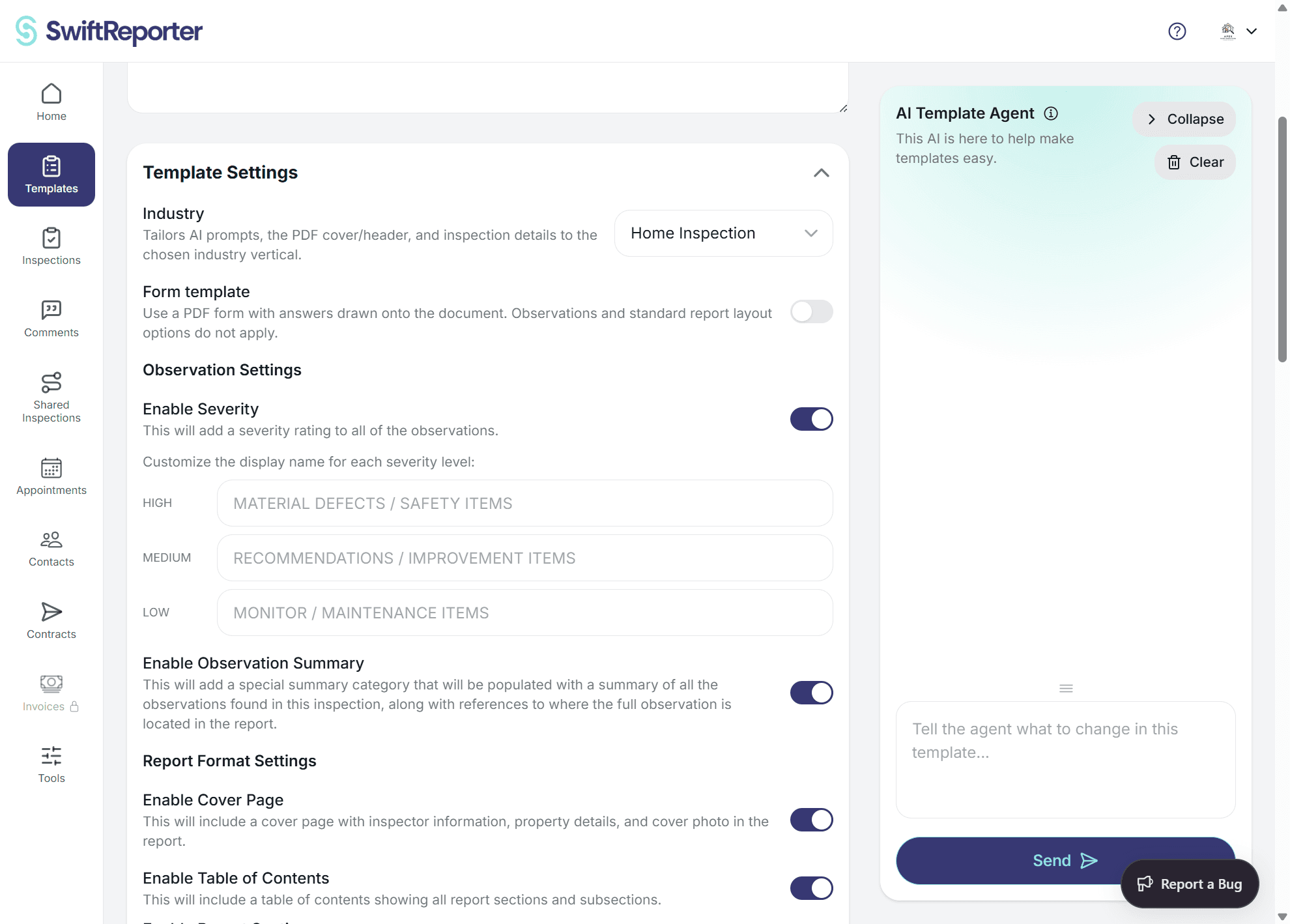
Use this guide when you want SwiftReporter to fill an official blank PDF form from your template.
Before you begin
- Save the template first so SwiftReporter can attach files to it.
- Use a blank PDF form that you want inspectors to complete from SwiftReporter.
Upload the blank PDF
- Open Templates.
- Open the template you want to edit.
- In the Form PDF section, click Upload PDF.
- Choose the blank PDF file.
- Wait for the upload to finish.
After upload, you can use:
- Replace PDF
- Preview
- Remove
Place fields on the PDF
- Open the form PDF layout tool for the template.
- In Field placement, choose what you want to place.
You can place:
- A Standard field
- A question answer as Typed answer
- A question answer as Answer as checkmark
- A dropdown option as Shape
- Signature-related placeholders such as signature, initials, and date fields
- Click Add field for a standard field, or choose the question placement option you want.
- Click on the PDF where that field should appear.
- Drag markers to move them.
- Resize selected signature placeholders with the corner handles when needed.
For signature-only instructions, see Adding Signature Placeholders to Templates.
Change how an answer appears
When a non-signature field is selected, SwiftReporter lets you choose how that answer appears on the PDF:
- Typed text
- Checkmark
- Shape (one dropdown choice)
Use the placement controls that appear around the marker or in the selected-element controls.
Attach a form to an inspection
- Open the inspection.
- In the Forms card, click Add form.
- Choose a template from Search form templates.
- Click Add selected form.
- Open the form from the inspection when you are ready to review or complete it.
What happens next
- The form stays attached to that inspection.
- SwiftReporter uses the saved placement rules from the template when it prepares the form PDF.
- If you change the template layout later, use the updated template for future inspections or update the inspection workflow as needed.
Troubleshooting
- If Upload PDF is disabled, save the template first.
- If SwiftReporter says to create a form template first, upload the blank PDF to a template before you try to add the form on an inspection.
- If you need a shape placement for a dropdown answer, add the dropdown options in the template first.
- If a marker is in the wrong place, select it and move it before you continue.