
Managing Your Profile
Managing Your Profile
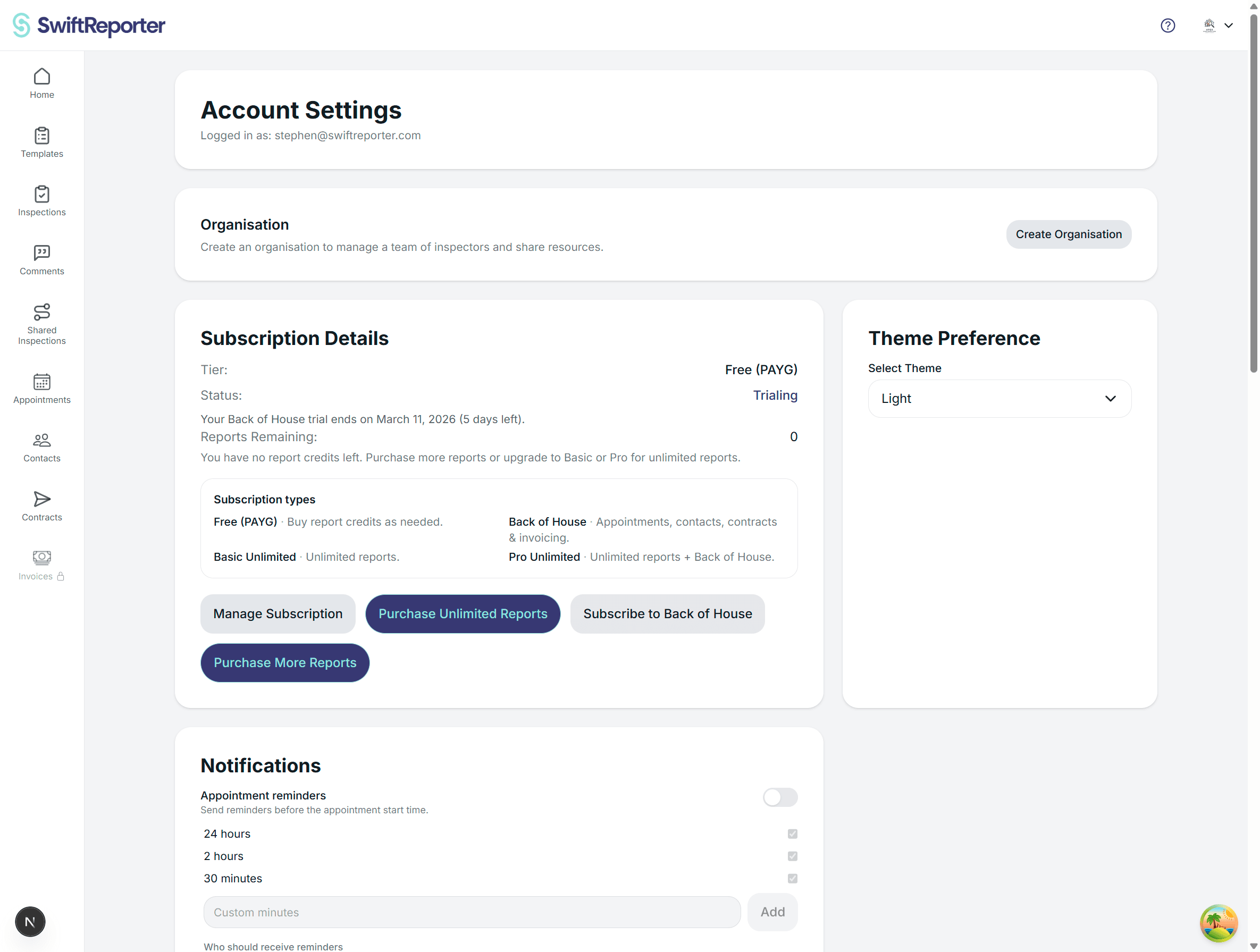
Your profile is the foundation of your professional presentation in SwiftReporter. This information automatically populates inspection reports, ensuring consistent branding and professional credibility across all your work.
Personal Information
- Full Name: Enter your complete name (appears as "Inspection Completed By" on reports)
- Phone Country Code: Select your country from the dropdown (defaults to US)
- Shows country name with phone code (e.g., "United States (+1)")
- Phone Number: Enter 7-15 digits only (non-digit characters are automatically removed)
- Email Address: Your account email (automatically included in report contact information)
Business Information
- Company Name: Your business or organization name (appears prominently on report cover pages)
- Job Title: Your professional title (e.g., "Residential Building Inspector")
- License Number: Your professional license number (displayed on reports for credibility)
- Certificates: Any professional certifications you hold
Address Information
- Country: Select your country from the dropdown
- Address Line 1: Your primary address
- Address Line 2: Optional additional address information
- City: Your city name
- State/Province: Select from dropdown (options change based on selected country)
- Label changes based on country (e.g., "State" for US, "Province" for Canada)
- Postal/ZIP Code: Enter your postal code
- Label changes based on country (e.g., "ZIP Code" for US, "Postal Code" for Canada)
Professional Information
- Job Title: Your professional title (e.g., "Residential Building Inspector")
- License Number: Your professional license number (appears on TREC REI 7-6 cover pages as TREC License #)
- Certificates: Any professional certifications you hold
Social Media (All Optional)
- Instagram: Your Instagram handle
- Facebook: Your Facebook profile
- Website: Your professional website
How Profile Information is Used in Inspections
Report Cover Page Integration
Your profile information automatically populates the cover page of every inspection report you generate:
Inspector Identity Section
- Profile Photo: Your uploaded photo appears as a professional headshot on the cover
- Company Name: Displayed prominently as the main title
- Full Name: Shows as "Inspection Completed By: [Your Name]"
- Job Title: Listed as "Title: [Your Job Title]"
- License Number: Displayed as "License: [Your License Number]"
Contact Information
- Phone Number: Formatted with country code (e.g., "+1 555-123-4567")
- Email Address: Your account email is automatically included
- Website: Professional website link (if provided)
Professional Branding
- Company Name: Used in report footers as "Proudly Completed by [Company Name]"
- Certificates: Listed to establish professional credibility
- Social Media: Optional inclusion of Instagram, Facebook, and website links
Report Header and Footer
Throughout each report, your profile information provides:
- Consistent Branding: Your company name and contact details appear on each page
- Professional Presentation: Complete inspector information builds client trust
- Legal Compliance: License numbers and certifications meet regulatory requirements
Inspection Management
Your profile information is also used for:
- Inspection Templates: Your active template selection is remembered per user
- User Navigation: Profile photo appears in the app header dropdown menu
- Account Management: Full name and contact details for account identification
Data Flow and Usage
Automatic Population
When you create a new inspection:
- Template Selection: Your active template is automatically applied
- Inspector Details: Your profile information is pre-loaded for the report
- Contact Information: Phone, email, and website details are ready for client use
Report Generation Process
During report creation:
- Cover Page Creation: Profile photo, company name, and credentials are formatted
- Header/Footer Setup: Contact information is added to all pages
- Professional Formatting: License numbers and certifications are prominently displayed
Professional Presentation
Your complete profile ensures:
- Credibility: License numbers and certifications establish professional standing
- Consistency: All reports maintain uniform branding and contact information
- Accessibility: Clients can easily contact you through multiple channels
Best Practices for Profile Management
Professional Photo Requirements
- High Quality: Use a clear, professional headshot
- Appropriate Attire: Dress professionally as this appears on client reports
- Background: Use a simple, clean background
- File Format: JPEG or PNG formats are supported with automatic optimization
Business Information Accuracy
- Company Name: Ensure this matches your business registration
- License Numbers: Keep current with renewals and updates
- Certifications: List all relevant professional qualifications
- Contact Information: Verify phone numbers and email addresses are current
Address Information Completeness
- Business Address: Use your primary business location
- Consistency: Ensure address matches business registration and marketing materials
- Professional Appearance: Complete addresses enhance credibility
Social Media and Web Presence
- Professional Profiles: Ensure social media accounts are business-appropriate
- Website Currency: Keep website information current and professional
- Contact Methods: Provide multiple ways for clients to reach you
Security and Privacy
Data Protection
- Secure Storage: All profile information is securely stored in Firebase
- Access Control: Only you can view and edit your profile information
- Backup Systems: Your data is automatically backed up and protected
Biometric Authentication
- Enhanced Security: Enable biometric login for secure, convenient access
- Device Support: Available on devices with fingerprint or face recognition
- Privacy: Biometric data is stored locally on your device, not on servers
Troubleshooting Profile Issues
Photo Upload Problems
- File Size: Large photos are automatically compressed
- Format Issues: Ensure photos are in JPEG or PNG format
- Display Problems: Try removing and re-uploading the photo
Information Not Appearing in Reports
- Check Completeness: Ensure all required fields are filled
- Template Settings: Verify your active template includes cover page generation
- Refresh Data: Force refresh your profile information
International Address Formatting
- Country Selection: Choose correct country first to enable proper formatting
- State/Province: Options populate based on country selection
- Postal Code: Labels adapt automatically to country standards
Impact on Professional Presentation
Client Trust Building
- Complete Information: Full profiles demonstrate professionalism
- Consistent Branding: Uniform presentation across all reports
- Legal Compliance: Proper license display meets regulatory requirements
Business Growth
- Professional Image: Well-formatted reports enhance business reputation
- Contact Accessibility: Multiple contact methods improve client communication
- Credential Display: Prominent certifications support business credibility
Operational Efficiency
- Automatic Integration: Profile information flows seamlessly into reports
- Time Savings: No need to manually enter inspector details for each report
- Consistency: Eliminates errors from manual entry of contact information
Regular Maintenance
Information Updates
- License Renewals: Update license numbers promptly
- Contact Changes: Modify phone numbers and addresses immediately
- Certification Updates: Add new certifications and remove expired ones
Professional Development
- New Certifications: Add qualifications as you earn them
- Business Changes: Update company information when business evolves
- Contact Methods: Keep all contact information current and accessible