
Generating a Report
Generating a Report
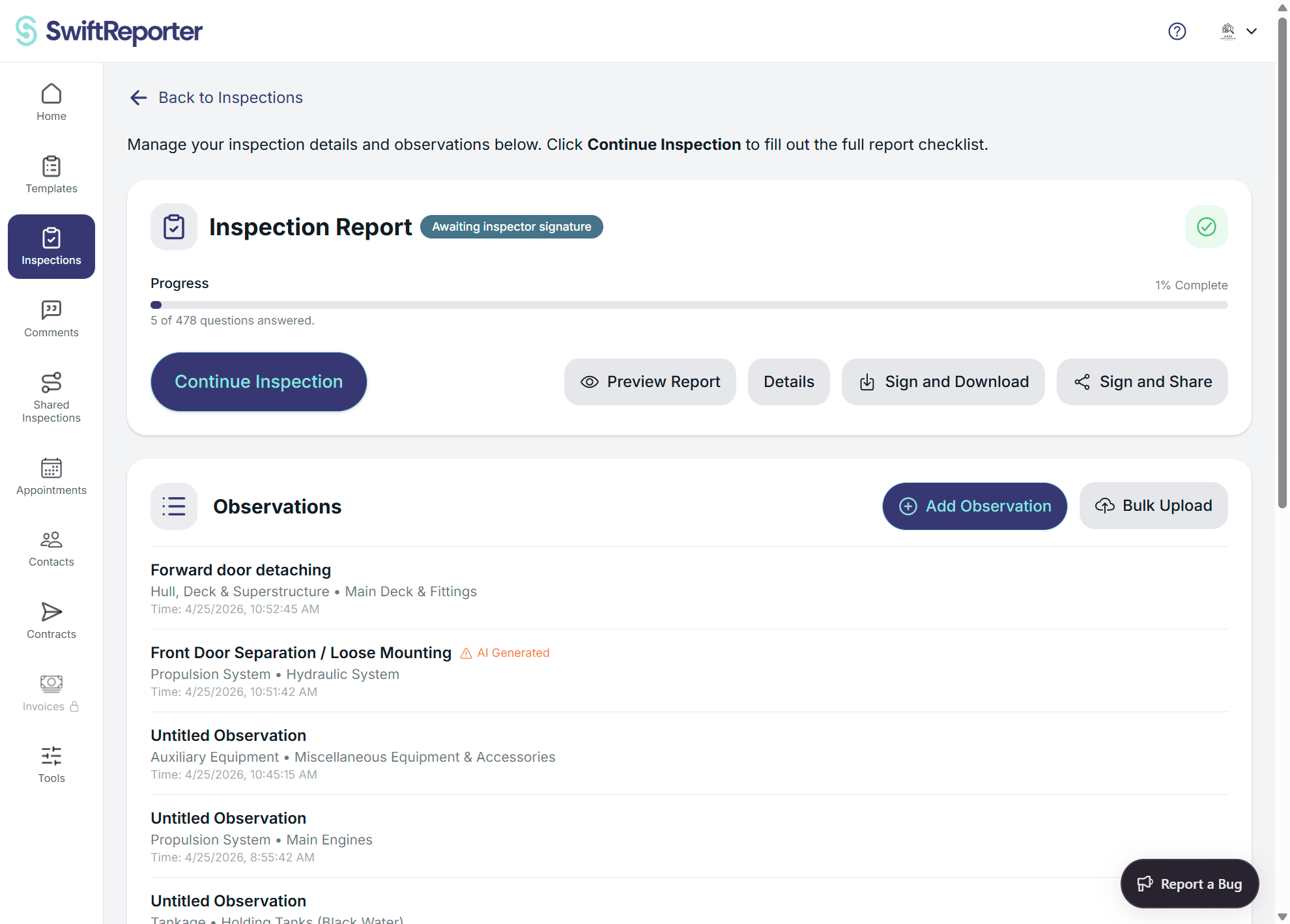
Once you have completed your inspection by adding observations, answering template questions, and selecting required notes, you can generate a comprehensive professional report.
Prerequisites for Report Generation
Before generating a report, ensure you have completed:
Template Requirements:
- Required Notes: All mandatory note selections must be completed
- Template Questions: Essential questions must be answered
- Progress Indicators: Check that inspection progress shows completion
Observation Content:
- Applied Comments: Comments from your library applied to observations
- Custom Observations: Manually created observations with complete details
- Photos and Media: Visual documentation attached to relevant observations
- Audio Transcriptions: Voice notes processed and integrated
Report readiness warning
Before you generate or download a PDF, share the report, or mark the inspection complete, SwiftReporter checks for unfinished items and shows one soft warning listing them together when any are present. Choose Continue anyway to proceed, or Review to open the first unfinished item (or Assist review if the only remaining item is pending Assist, or inspection details for the date). This does not hard-block those actions. Required template notes and questions still block completion until they are satisfied.
The warning can include:
- Blank observations — a default or empty title such as New Observation or Untitled Observation with no description, recommendation, location, photos, or recordings
- Placeholder titles — the same default or empty title even when the observation already has written content or media
- Inspection date — missing or invalid
- Unsynced photos (web) — photos captured in the mobile app that have not finished syncing
- Pending Assist — suggestions still awaiting approve or reject
When none of these apply, no warning is shown.
Starting Report Generation
Accessing Report Generation
From Inspection Screen:
- Navigate to Inspection: Open the specific inspection for report generation
- Locate Generate Button: Find the "Generate Report" or "View Report" button, typically located:
- In the inspection details view
- On the main inspection screen
- In the bottom toolbar
- Initiate Process: Tap the button to begin report generation
Generation Process Overview
When you initiate report generation, the system:
Collects Inspection Data:
- Observations: Gathers all observations with applied comments
- Template Content: Includes required note selections and question answers
- Media Files: Processes photos, audio, and annotations
- Template Structure: Applies selected template organization
AI Processing (if applicable):
- Audio Analysis: Transcribes and analyzes voice recordings
- Content Categorization: Organizes findings by template structure
- Observation Enhancement: Generates titles and descriptions for incomplete observations
- Comment Matching: Suggests relevant comments for observations
Content Integration:
- Template Structure: Organizes content according to categories and subcategories
- Comment Integration: Applied comments appear as observation content
- Required Notes Display: Note selections appear in appropriate report sections
- Question Responses: Template question answers integrated throughout report
How Comments Appear in Reports
Applied Comments Integration
Defect Comments:
- Observation Content: Comment title becomes observation title
- Description: Comment description appears as observation description
- Recommendations: Comment recommendations included in observation
- Severity: Comment severity level displayed if applicable
- Location: Location information from comment or customized during application
Note Comments:
- Informational Content: Note comments appear as informational observations
- Context Provision: Provide background and context for report sections
- Professional Language: Maintain consistent professional tone throughout report
- Template Integration: Seamlessly integrated with other template content
Comment Customization Impact
Modified Comments:
- Customized Content: Any modifications made during comment application are preserved
- Location Specificity: Site-specific details added during inspection appear in report
- Enhanced Descriptions: Additional details added to standard comment content
- Severity Adjustments: Modified severity levels reflected in report presentation
Required Notes in Reports
Note Selection Display
Dropdown Notes:
- Single Selections: Selected option appears as labeled field in report
- Professional Format: Note group title used as field label
- Complete Content: Full text of selected note included in report
- Consistent Placement: Appears in designated subcategory section
Checkbox Notes:
- Multiple Selections: All selected notes listed under group title
- Organized Display: Notes presented in logical, readable format
- Complete Information: Full content of each selected note included
- Professional Integration: Seamlessly integrated with other report content
Notes in the Generated PDF
The generated PDF carries the same note content you see on the on-screen report, whether or not your template uses Report Sections:
- Required-notes blocks print the notes you selected (or wrote, for text-type groups) in the order they appear in the subcategory.
- Manually added notes on an observation or subcategory appear inline with the rest of the narrative — they aren't limited to the digital view.
- Note-type question answers use the answer you saved. An answer you edited on the inspection always takes precedence over the template's default, so a default won't silently overwrite your edit at export time.
- Special characters and pasted formatting in manually typed note text are rendered safely without breaking the PDF layout.
If a note that's visible on screen doesn't appear in the PDF, treat that as a problem to report to support rather than expected behavior.
Cover page and photo filenames
If Enable Cover Page is off in Template Settings, the generated PDF has no cover page. That is expected.
In the HTML report preview, photos still load when the filename contains spaces.
Note Organization in Reports
By Template Structure:
- Category Organization: Notes appear under appropriate main categories
- Subcategory Placement: Notes positioned in relevant subcategory sections
- Logical Flow: Notes integrated logically with other content
- Professional Presentation: Consistent formatting throughout report
Example Report Integration:
3.2 Electrical System - Main Panel

Electrical Panel Type: 200-amp main breaker panel with copper bus bars

Safety Requirements:
- All electrical work must be performed by licensed electricians
- Arc-fault circuit interrupters recommended for bedroom circuits
- GFCI protection required in wet locations

Panel Assessment: The main electrical panel shows signs of age but remains functional...
Template Questions in Reports
Question Response Integration
Text Questions:
- Labeled Responses: Question text serves as field label
- Complete Answers: Full response content included in report
- Contextual Placement: Appears in relevant template section
- Professional Format: Consistent formatting with other content
Multiple Choice Questions:
- Selected Options: Chosen options displayed clearly
- Question Context: Original question provides context for selections
- Complete Information: All relevant details included
- Organized Presentation: Logical arrangement within report sections
Report Content Organization
Template-Driven Structure
Category Organization:
- Main Sections: Template categories become report sections
- Logical Flow: Content flows according to template design
- Professional Headers: Category titles formatted as section headers
- Consistent Layout: Standardized presentation across all sections
Subcategory Integration:
- Subsection Headers: Subcategory titles become subsection headers
- Content Grouping: Related content grouped under appropriate subcategories
- Mixed Content: Comments, notes, questions, and observations integrated seamlessly
- Visual Organization: Clear visual hierarchy for easy reading
Content Type Integration
Comprehensive Sections: Each report section typically includes:
- Required Note Selections: Mandatory template note choices
- Template Question Answers: Responses to template-specific questions
- Applied Comments: Comments from library applied to observations
- Custom Observations: Manually created inspection findings
- Photos and Media: Visual documentation with annotations
- Professional Formatting: Consistent presentation throughout
Advanced Report Features
AI Enhancement Integration
Content Optimization:
- Language Consistency: AI ensures consistent professional language
- Completeness Check: Identifies missing information or incomplete sections
- Quality Assurance: Validates content quality and professional presentation
- Suggestion Integration: AI suggestions incorporated where applicable
Custom Content Preservation
Inspection-Specific Details:
- Location Specificity: Site-specific details preserved and highlighted
- Unique Circumstances: Custom observations for unusual situations
- Client-Specific Information: Tailored content for specific client needs
- Contextual Modifications: Customizations made during inspection preserved
Quality Assurance During Generation
Automated Checks
Content Validation:
- Required Completion: Verifies all mandatory fields completed
- Content Quality: Checks for completeness and consistency
- Format Validation: Ensures proper formatting and presentation
- Integration Verification: Confirms all content properly integrated
Error Handling:
- Missing Content: Identifies incomplete sections
- Format Issues: Detects and resolves formatting problems
- Content Conflicts: Resolves any content integration issues
- Quality Warnings: Alerts to potential quality concerns
Manual Review Points
Before Generation:
- Progress Check: Verify inspection completion status
- Content Review: Ensure all required notes and questions completed
- Observation Quality: Review applied comments and custom content
- Media Verification: Confirm photos and audio properly attached
Troubleshooting Report Generation
Common Issues
Generation Failure:
- Incomplete Requirements: Check for missing required notes or questions
- Content Issues: Verify all observations have necessary content
- Template Problems: Ensure template is properly configured
- System Issues: Check network connectivity and app status
Content Missing from Report:
- Applied Comments: Verify comments were properly applied to observations
- Note Selections: Confirm required notes were completed
- Question Answers: Check that template questions were answered
- Media Files: Ensure photos and audio are properly attached
Formatting Problems:
- Template Issues: Verify template is properly configured
- Content Conflicts: Check for conflicting content or formatting
- System Updates: Ensure app is current version
- Template Validation: Contact support if persistent formatting issues
Performance Optimization
Faster Generation:
- Complete Content: Ensure all content is complete before generation
- Optimize Media: Compress large photos or audio files if needed
- Network Stability: Use stable internet connection for generation
- App Performance: Ensure sufficient device resources available
Post-Generation Options
Once report generation is complete:
Immediate Actions:
- Review Content: View the generated report for accuracy
- Edit if Needed: Make corrections or additions to the report
- Share or Download: Download as PDF or share electronically. A watermark-free PDF and sharing both need a used report credit for that inspection or a qualifying reports subscription—not a Paid job badge. See Downloading the Report and Sharing Reports and Invites.
- Signing Workflow: If the inspection uses signing, follow Signing and Downloading Inspection PDFs for inspector and viewer steps
Quality Assurance:
- Content Verification: Ensure all applied comments appear correctly
- Note Integration: Verify required note selections are properly displayed
- Professional Presentation: Confirm report meets professional standards
- Client Requirements: Ensure report meets specific client needs
The report generation process integrates all aspects of your inspection - from comment library applications to required note selections - into a comprehensive, professional document that accurately represents your inspection findings and maintains consistency with your chosen template structure.