
Creating a New Inspection
Creating a New Inspection
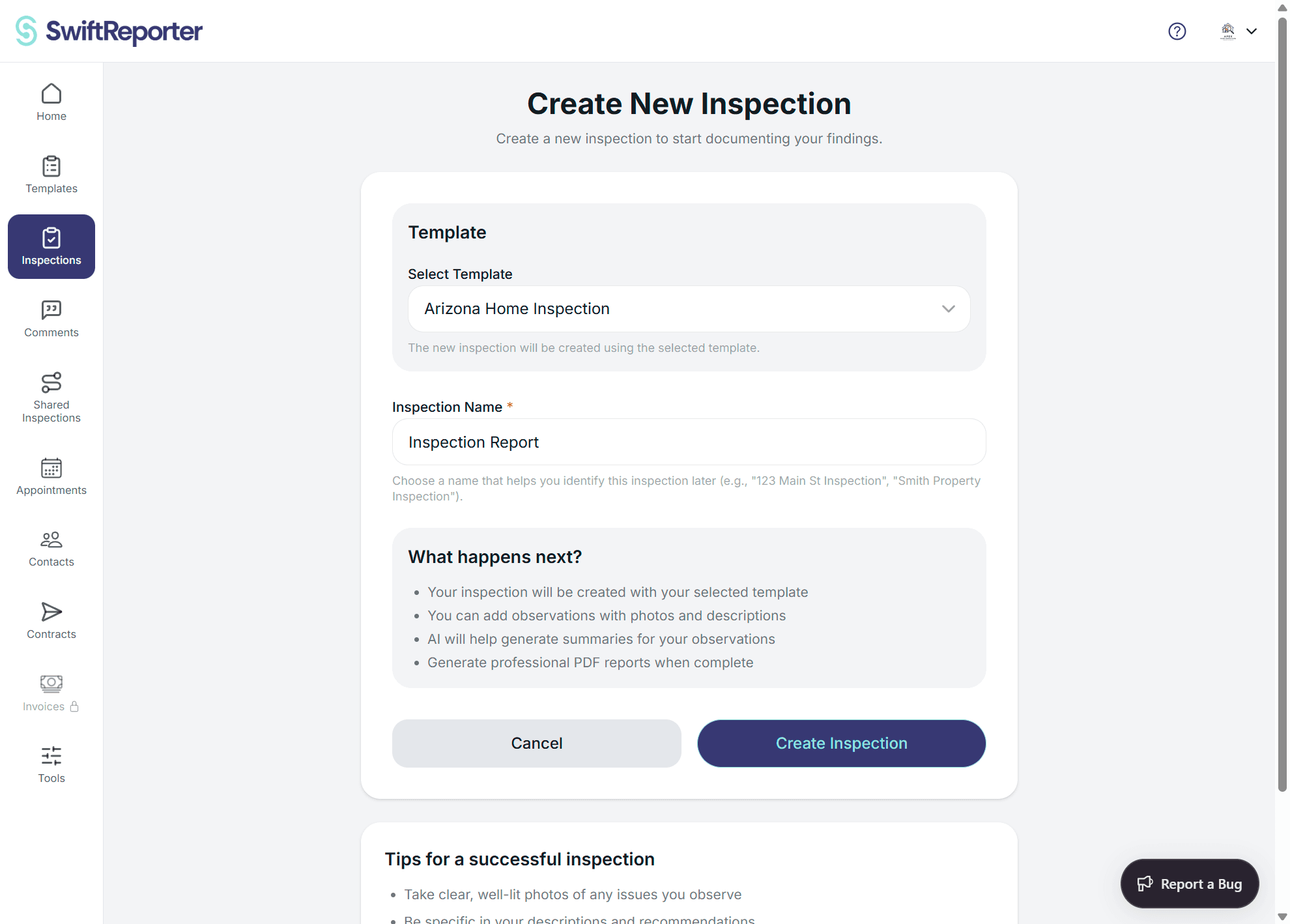
Creating an inspection is the first step in documenting your findings. The process is streamlined to get you started quickly.
Quick Creation Process
Step 1: Navigate to Home Screen
- On the web dashboard, the highlighted card is Create Inspection.
- On mobile, use the Home screen. You'll see the "Recent Inspections" section with any existing inspections.
- After web signup, a Practice Inspection with a Practice badge is already in the list. It is a normal inspection used for teaching. It does not block creating a real inspection. See Getting Started on the Web App.
Step 2: Create Inspection
- Locate the "Create Inspection" button within the Recent Inspections section
- Tap the "Create Inspection" button
- The app automatically:
- Creates a new inspection with a timestamp-based name (e.g., "Inspection 1/22/2025, 10:30:15 AM")
- Adds it to your inspection list
- Immediately navigates you to the Inspection Details screen
Step 3: Automatic Setup
The new inspection is created with:
- Unique ID: System-generated identifier
- Default Name: Timestamp-based naming
- Creation Date: Current date and time
- Status: Set to active
- User Association: Linked to your account
- Template: Uses your currently selected active template
Post-Creation Actions
Once your inspection is created, you'll be on the Inspection Details screen where you can:
Customize Inspection Details
- Edit Name: Tap the inspection title to rename it (e.g., "123 Main Street Inspection")
- Add Details: Tap the "Details" button to add:
- Client contact information
- Property address (Home Inspection templates) or Vessel Identifier (Marine Survey templates — a single text field for the vessel name, year/make/model, and HIN that appears on the report cover bar and every page header)
- Inspection date
- Cover page summary
Start Adding Content
- Add Observations: Tap "Add Observation" to begin documenting findings
- Set Cover Photo: Use the photo grid to add a cover image for the inspection
- Begin Recording: Start capturing observations immediately
Subscription Considerations
Usage Limits
- Trial Accounts: Can create inspections during the 30-day trial period
- Subscription Required: After trial expiration, active subscription needed
- Report Limits: Some accounts have limits on the number of reports
Purchase Prompts
If you've reached your account limits:
- The app will display a purchase dialog
- Options to view purchase packages
- Link to external purchase website
Template Integration
Active Template
- New inspections automatically use your currently selected active template
- Template defines the structure for categories, subcategories, and questions
- You can change templates before creating inspections if needed
Default Template
- If no template is selected, a default template is automatically created
- New users get an "Example Template" with standard inspection categories
Optional sections
If the selected template has optional categories, you see a checklist titled Optional sections before the job is created:
- Web: On the create page. Helper text: "Uncheck sections that are not part of this inspection."
- Mobile: On the create-confirm step. Helper text: "Uncheck sections that do not apply to this inspection."
Checked means the section is included. You can change this later on Complete Report (web) or the inspection hub (mobile). If you exclude a section that already has observations or answers, confirm first. Existing data is kept and shows again if you include the section later. Excluded sections do not appear in the report or PDF until you include them.
Best Practices
💡 Naming Convention: Immediately rename your inspection with a meaningful title like the property address or client name for easy identification.
📱 Quick Start: The fastest workflow is: Create Inspection → Add Details → Start Adding Observations.
🗂️ Organization: Use consistent naming patterns to make inspections easier to find later.
Troubleshooting
⚠️ Creation Fails: If inspection creation fails, check your internet connection and subscription status.
🔄 Auto-refresh: The inspection list automatically updates when new inspections are created.
📊 Limits Reached: If you can't create inspections, you may need to upgrade your subscription or purchase additional report credits.