
Editing the Report
Editing the Report
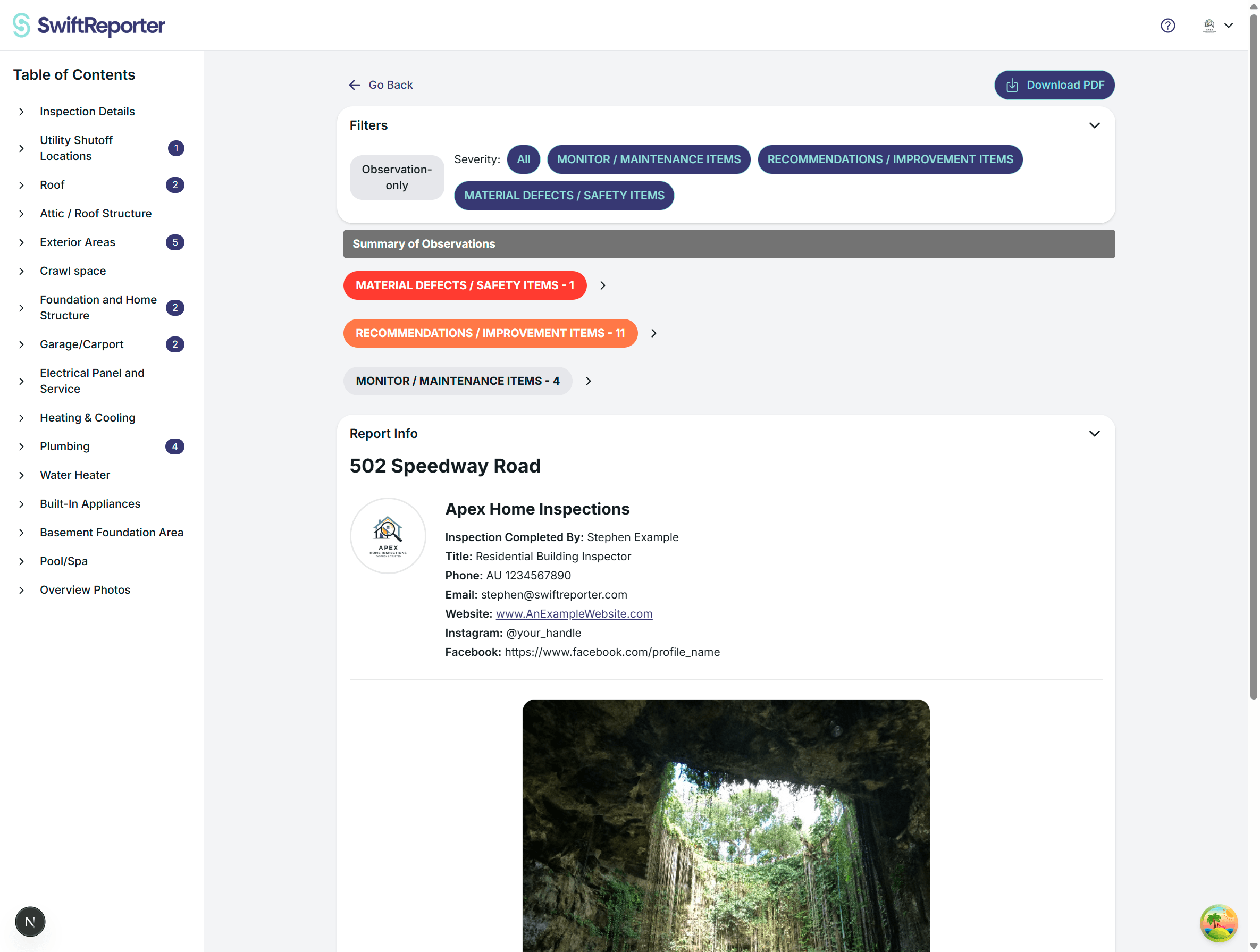
SwiftReporter allows you to modify generated reports directly within the app before finalizing and downloading them. This includes editing applied comments, adjusting required note selections, modifying template question responses, and customizing the overall report structure.
Enabling Edit Mode
Accessing Edit Mode
Starting Edit Mode:
- Navigate to Report: Open the report you wish to edit (see Viewing the Report)
- Locate Edit Button: Find the "Edit" button or icon, typically in the report header or toolbar
- Activate Editing: Tap "Edit" to toggle the report into editable state
- Edit Confirmation: The interface will change to show editable elements
Web Layout: Left Table of Contents
On the web report editor, a Table of Contents drawer appears on the left side of the screen and is open by default on desktop. The TOC is the same one used in Preview, so navigating during editing matches what your client sees.
- Jump straight to a category: Click any entry in the TOC to scroll the report directly to that category. The view jumps instantly — it does not cascade through every category in between.
- Only the target expands: When you jump to a category in a long report, only that category expands. Other categories stay collapsed so the editor stays fast and the surrounding scroll position is predictable.
- Sections appear in the TOC: If the template has Report Sections turned on, sections appear as the top entries with their categories nested underneath.
- Show / hide on smaller screens: Use the TOC toggle to open or close the drawer when working on a narrower window.
Optional sections
If the template has optional categories, Complete Report (web) shows a checklist titled Optional sections. Helper text: "Uncheck sections that are not part of this inspection." Checked sections are included. If you uncheck a section that already has observations or answers, confirm first. Existing data is kept and shows again if you include the section later. Excluded sections do not appear in the on-screen report or PDF until you include them. On mobile, the same checklist is on the inspection hub.

Report readiness warning
Before you generate or download a PDF, share the report, or mark the inspection complete, SwiftReporter may show a soft warning listing unfinished items. Choose Continue anyway to proceed, or Review to go to the first unfinished item. This does not hard-block those actions. Required template items still block completion until they are satisfied.
Edit Mode Indicators:
- Visual Changes: Editable elements become highlighted or outlined
- Edit Icons: Pencil icons appear next to editable content
- Interface Updates: Additional editing controls become visible
- Mode Status: Edit mode status indicated in interface
What You Can Edit
Once in Edit Mode, multiple aspects of the report become editable:
Applied Comments and Observations
Comment-Based Observations:
- Observation Content: Edit title, description, and recommendation from applied comments
- Location Details: Modify or add specific location information
- Severity Levels: Adjust severity ratings based on actual conditions
- Custom Additions: Add inspection-specific details to standard comment content
Editing Process:
- Locate Observation: Find the observation derived from an applied comment
- Tap Edit Icon: Select the edit option for the specific observation
- Modify Content: Update any field as needed for accuracy
- Save Changes: Changes are typically saved automatically
Example Edits:
- Change "GFCI outlet not working" to "GFCI outlet in master bathroom not working"
- Modify severity from "Maintenance" to "Safety" based on actual conditions
- Add specific location details: "Located on north wall near vanity"
- Include additional context: "Client reported outlet stopped working last week"
Required Note Selections
Modifying Note Selections:
- Dropdown Notes: Change selected option from available choices
- Checkbox Notes: Add or remove selected options
- Note Content: View and understand selected note implications
- Validation: Ensure selections accurately reflect inspection findings
Editing Required Notes:
- Find Note Section: Locate required note groups in report
- Access Selection: Tap on current selection to see options
- Change Selection: Choose different option(s) as appropriate
- Verify Impact: Ensure new selection accurately reflects findings
Example Note Edits:
- Change foundation type from "Concrete Slab" to "Crawl Space"
- Add additional safety concerns to checkbox selections
- Update weather conditions to reflect actual inspection conditions
- Modify scope limitations based on actual access constraints
Template Question Responses
Question Answer Modifications:
- Text Responses: Edit free-form text answers
- Multiple Choice: Change selected options
- Checkbox Responses: Add or remove selected items
- Date Fields: Update dates and time-sensitive information
Response Editing:
- Locate Question: Find template question in appropriate report section
- Edit Response: Modify answer content or selection
- Validate Answer: Ensure response accurately reflects inspection
- Save Changes: Confirm updates to question responses
Report Structure Modifications
Category-Level Changes:
- Edit Category Titles: Modify category names for this specific report
- Change Category Order: Reorder categories if reordering is supported
- Add Categories: Create new categories for unique inspection circumstances
- Delete Categories: Remove irrelevant categories (affects only this report)
Subcategory Adjustments:
- Subcategory Titles: Edit subcategory names for clarity
- Content Organization: Reorganize content within subcategories
- Add Subcategories: Create new subcategories for unique situations
- Remove Subcategories: Delete irrelevant subcategories
ℹ️ Note: Structural changes affect only this specific report, not the original template.
Advanced Editing Features
Content Enhancement
Adding Context:
- Inspector Notes: Add personal observations and context
- Client-Specific Information: Include details relevant to specific client
- Follow-Up Recommendations: Add suggestions for future inspections
- Clarifications: Provide additional explanation for complex issues
Content Expansion:
- Detailed Descriptions: Expand on standard comment content
- Specific Recommendations: Customize recommendations for unique situations
- Additional Photos: Add more visual documentation
- Cross-References: Link related observations and findings
Quality Assurance Editing
Content Verification:
- Accuracy Check: Verify all applied comments accurately reflect findings
- Completeness Review: Ensure all required information included
- Consistency Check: Confirm consistent language and formatting
- Professional Standards: Maintain professional tone throughout
Error Correction:
- Typo Correction: Fix spelling and grammatical errors
- Factual Updates: Correct any inaccurate information
- Clarification: Add clarity to confusing or ambiguous content
- Professional Polish: Enhance language for professional presentation
Template Integration Editing
Required Notes Refinement:
- Selection Accuracy: Ensure selections match actual conditions
- Completeness: Verify all required notes are appropriately selected
- Context Alignment: Confirm selections align with observation content
- Professional Presentation: Ensure selections enhance report quality
Question Response Optimization:
- Answer Completeness: Provide complete, informative responses
- Accuracy Verification: Ensure answers reflect actual inspection findings
- Professional Language: Use appropriate professional terminology
- Context Integration: Ensure responses support overall report narrative
Collaborative Editing Features
Review and Approval Workflow
Internal Review:
- Draft Sharing: Share draft reports for internal review
- Comment System: Add internal comments and suggestions
- Version Control: Track changes and revisions
- Approval Process: Formal approval before client delivery
Client Collaboration:
- Client Review: Allow client input on specific findings
- Clarification Requests: Address client questions and concerns
- Priority Adjustments: Modify priorities based on client needs
- Final Approval: Client sign-off on report content
Change Tracking
Edit History:
- Version Management: Track different versions of the report
- Change Documentation: Record what changes were made and when
- User Attribution: Track who made specific changes
- Rollback Capability: Revert changes if needed
Saving and Managing Changes
Automatic Saving
Real-Time Updates:
- Continuous Saving: Changes saved automatically as you work
- Connection Management: Handle connectivity issues gracefully
- Data Protection: Prevent data loss during editing
- Sync Management: Ensure changes sync across devices
Manual Save Points
Checkpoint Creation:
- Save Milestones: Create specific save points during editing
- Version Naming: Name different versions for easy identification
- Backup Creation: Create backups before major changes
- Recovery Options: Restore from save points if needed
Exiting Edit Mode
Completing Edits:
- Final Review: Review all changes for accuracy and completeness
- Save Confirmation: Ensure all changes are saved
- Exit Edit Mode: Toggle edit mode off to return to viewing mode
- Report Finalization: Prepare report for client delivery
Quality Checklist:
- All applied comments accurately reflect inspection findings
- Required note selections are appropriate and complete
- Template question responses are accurate and informative
- Report structure is logical and professional
- Language is consistent and professional throughout
- All necessary photos and media are included
Best Practices for Report Editing
Content Quality
Professional Standards:
- Accurate Representation: Ensure report accurately reflects inspection findings
- Complete Information: Include all necessary details and context
- Professional Language: Maintain consistent, professional tone
- Client Focus: Consider client needs and understanding level
Technical Accuracy:
- Factual Verification: Verify all technical information is correct
- Recommendation Appropriateness: Ensure recommendations are feasible and appropriate
- Severity Accuracy: Confirm severity levels match actual conditions
- Code Compliance: Reference appropriate codes and standards
Efficiency Optimization
Editing Strategy:
- Systematic Approach: Edit in logical order from beginning to end
- Content Prioritization: Focus on most important content first
- Batch Processing: Group similar edits together for efficiency
- Quality Review: Conduct final comprehensive review before completion
Time Management:
- Focused Sessions: Complete editing in dedicated time blocks
- Minimal Changes: Make only necessary changes to maintain quality
- Template Leverage: Use template content effectively to minimize custom editing
- Standardized Processes: Develop consistent editing procedures
Troubleshooting Editing Issues
Common Problems
Edit Mode Not Working:
- App Restart: Try restarting the application
- Permissions Check: Verify editing permissions
- Report Status: Ensure report is in editable state
- System Updates: Check for app updates
Changes Not Saving:
- Network Connectivity: Verify internet connection
- Storage Space: Ensure sufficient device storage
- App Performance: Check app is running efficiently
- Manual Save: Try manual save if automatic saving fails
Content Formatting Issues:
- Template Validation: Ensure template is properly configured
- Content Conflicts: Check for conflicting content or formatting
- Format Reset: Try resetting formatting to template default
- Support Contact: Contact support for persistent formatting issues
Performance Optimization
Faster Editing:
- Focused Changes: Make targeted, specific edits
- Efficient Navigation: Use report navigation features effectively
- Batch Operations: Group similar edits together
- Minimal Modifications: Edit only what's necessary for accuracy
Quality Maintenance:
- Regular Saves: Save changes frequently during editing
- Progressive Review: Review changes as you make them
- Consistent Standards: Maintain consistent editing approach
- Final Verification: Conduct comprehensive final review
Effective report editing enhances the quality and accuracy of your inspection reports while maintaining the professional standards established by your template structure and comment library. The editing process allows you to customize standard content for specific circumstances while preserving the efficiency gains from using templates and comments.