
The Inspection Screen
The Inspection Screen
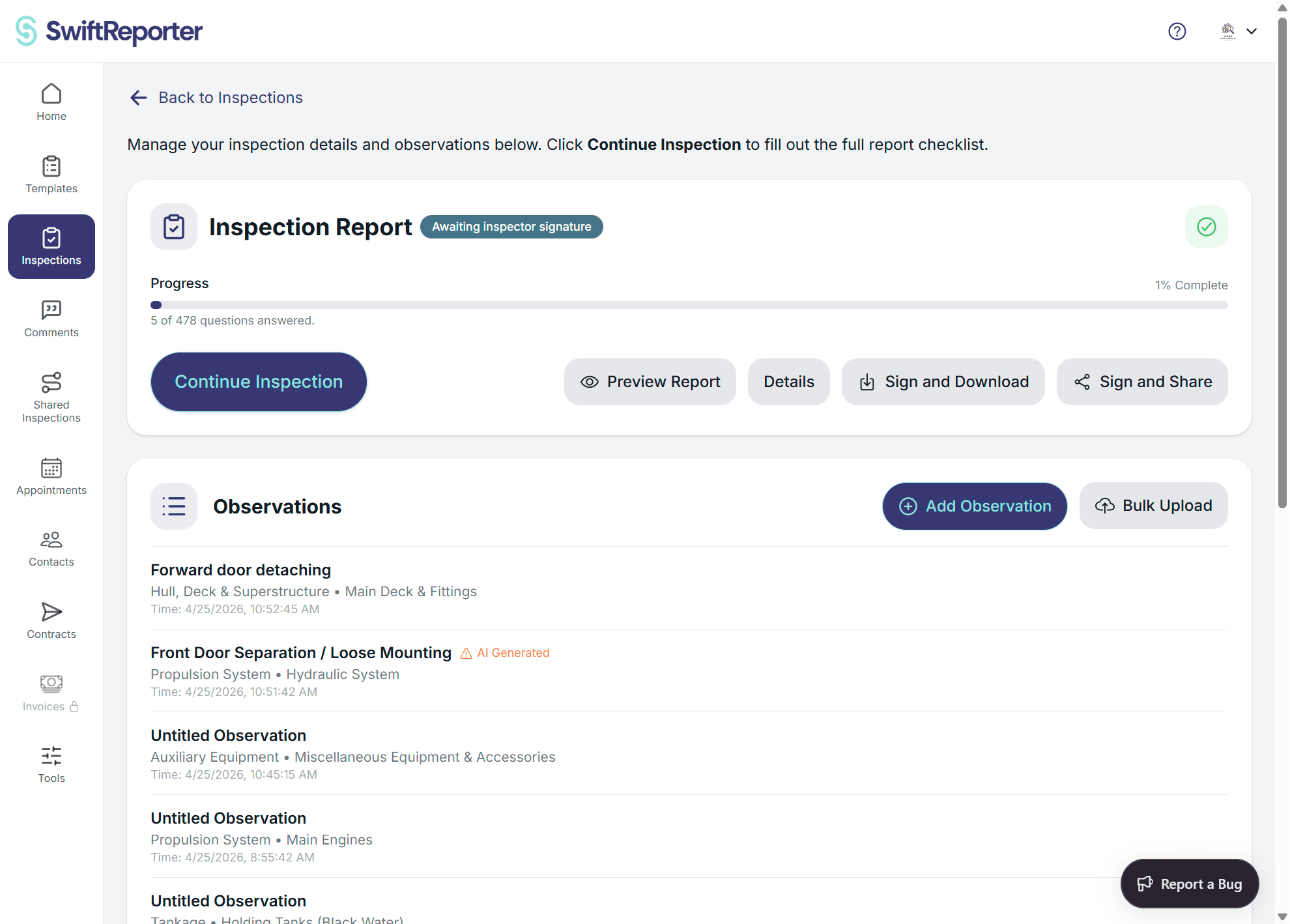
Once you create or select an inspection from the Home screen, you are taken to the Inspection Details screen. This is the central hub for managing all aspects of your inspection.
Main Interface Elements
Header Section
- Inspection Title: Displays the current inspection name (tap to edit)
- Information Button: Tap the "i" icon to view inspection metadata:
- Current status
- Creation date
- Last updated timestamp
- Back Navigation: Return to the Home screen
Cover Photo Section
- Photo Grid: Large area for setting a cover photo
- Add Photo Options:
- Take a new photo with the camera
- Select from existing photos
- Set as cover photo for the inspection
- Photos only: The cover area accepts photos. Videos cannot be added to the cover position.
Action Buttons
Three main action buttons are displayed:
-
"Complete Report" (Primary button with pencil icon)
- Opens the report editing interface
- Allows you to compile and edit your final inspection report
-
"Details" (Secondary button with list icon)
- Opens the inspection details editor
- Edit client information, property address, inspection date, and cover page summary
-
"Download Report" (Primary button with download icon)
- Directly generates and downloads the final PDF report for sharing with clients
Observations Section
- Section Title: "Observations"
- Observation List: Displays all observations for this inspection
- Add Observation Button: Create new observations for this inspection
Core Actions
Managing Inspection Details
- Edit Name: Tap the inspection title at the top to rename it inline
- View Info: Tap the information icon (i) to see inspection metadata
- Edit Details: Use the "Details" button to access the full details editor
🛥️ Marine inspections: When the inspection's template has its Industry set to Marine Survey, the Property Address card on the Details editor is replaced by a Vessel Identifier card with a single text field. The value you enter — typically vessel name, year/make/model, and HIN — appears on the PDF cover bar (uppercase), the second-page identifier block, and every running page header. See Template Settings for how Industry is set.
Working with Observations
- Add New: Tap "Add Observation" to create a new observation
- Automatically creates the observation and opens the observation screen
- View Existing: Tap any observation in the list to open it for editing
- Delete Observations: Remove observations that are no longer needed
Cover Photo Management
The cover photo area provides several options:
- Camera Integration: Take photos directly within the app
- Photo Selection: Choose from previously captured images
- Cover Assignment: Set any photo as the inspection's cover image
Report Management
- Edit Report: Use "Complete Report" to access the full report editor
- Download: Use "Download Report" to directly generate and download the final PDF for sharing
Contacts, Contracts, and Forms
Depending on your setup, the inspection screen can also include workflow cards for related job actions:
- Contacts: Add or update the people attached to the inspection
- Contracts: Send, view, resend, or replace contract signing requests tied to that inspection
- Forms: Attach and open supplementary form PDFs for that inspection
For those workflows, see Managing Contacts and Contracts on an Inspection and Using Form PDF Templates.
Archive and restore
- An archived inspection shows an Archived pill on the hub.
- Choose Archive or Restore on the hub (on mobile, after Share). Confirm when prompted. After you confirm archive, you can undo to restore.
- On the Inspections list, switch Active | Archived. See Archiving Inspections.

Optional sections
If the template has optional categories, you can include or exclude them for this inspection:
- Mobile: The hub shows a checklist titled Optional sections. Helper text: "Uncheck sections that do not apply to this inspection."
- Web: The same checklist appears on Complete Report. Helper text: "Uncheck sections that are not part of this inspection."
Checked means included. If you uncheck a section that already has observations or answers, confirm first. Existing data is kept and shows again if you include the section later. Excluded sections do not appear in the report or PDF until you include them.
User Interface Features
Loading States
- Activity indicators appear during processing actions
- Prevents multiple simultaneous operations
Error Handling
- Clear error messages for failed operations
- Alerts for validation issues or connectivity problems
Auto-Save
- Changes to inspection details are automatically saved
- Real-time updates to inspection metadata
Navigation Patterns
To Observation Screen
- Tap "Add Observation" → Creates new observation and opens observation editor
- Tap existing observation → Opens that specific observation for editing
To Report Interface
- "Complete Report" → Full report editing with template integration
- "Download Report" → Direct PDF generation and download for sharing
To Details Editor
- "Details" button → Comprehensive inspection information editor
Best Practices
💡 Cover Photos: Add a cover photo early in the inspection process - it helps identify inspections quickly and appears on report covers.
📝 Naming: Use descriptive inspection names like property addresses for easy identification.
🔄 Regular Saving: While the app auto-saves, complete observations fully before moving between screens.
📊 Organization: Group related observations and use consistent categorization for better report organization.