
Changing Your Password
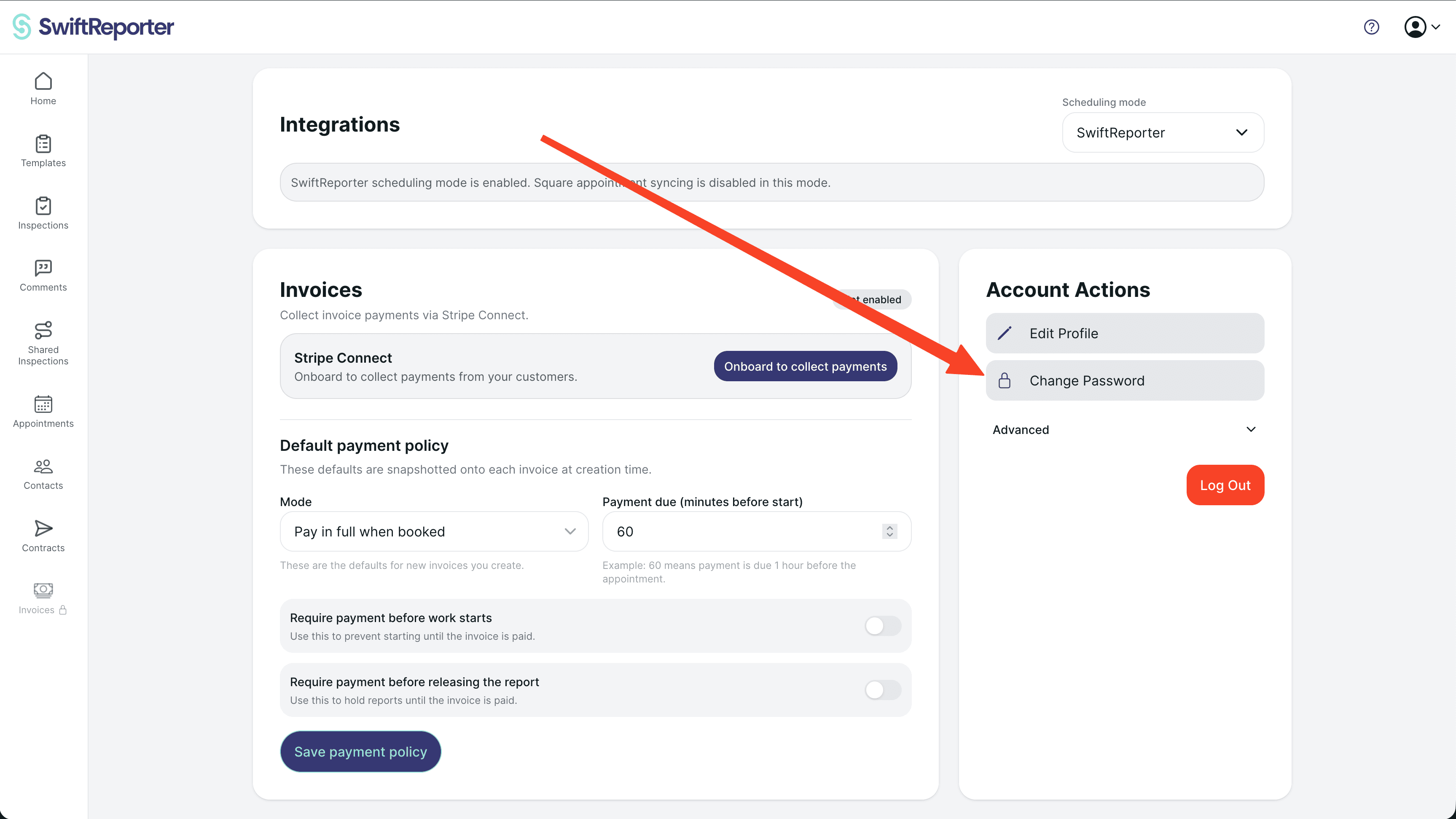
You can change your account password from the Change Password screen.
Accessing Change Password:
- Navigate to the main settings or account area of the app.
- Select the "Change Password" option.
Steps to Change Password:
- Enter Current Password: Type your current password in the designated field.
- Enter New Password: Type your desired new password. Remember the requirements:
- At least 8 characters long.
- At least one uppercase letter.
- At least one lowercase letter.
- At least one number.
- At least one special character (
@$!%*?&).
- Confirm New Password: Re-type your new password exactly as you entered it in the previous step.
- Tap Change Password: Tap the "Change Password" button.
If successful, you will see a confirmation message. If there's an error (e.g., current password incorrect, new passwords don't match, new password doesn't meet requirements), an alert message will appear.