
Managing Your Subscription
This section provides comprehensive information about SwiftReporter's subscription plans, features, and how to manage your subscription status through the app.
Getting Started with Subscriptions
Free Trial (All-in-One Trial)
New accounts receive a 30-day All-in-One Trial with full access:
- Unlimited watermark-free reports
- Back of House — appointments, contacts, contracts, and invoicing
- No free report credits
Your trial status and end date appear in Account on the web and under Subscription & Account in mobile Settings. After the trial, your account returns to the pay-as-you-go baseline: main report PDFs are watermarked unless you use a report credit, and Back of House is unavailable until you subscribe.
Subscription Plans
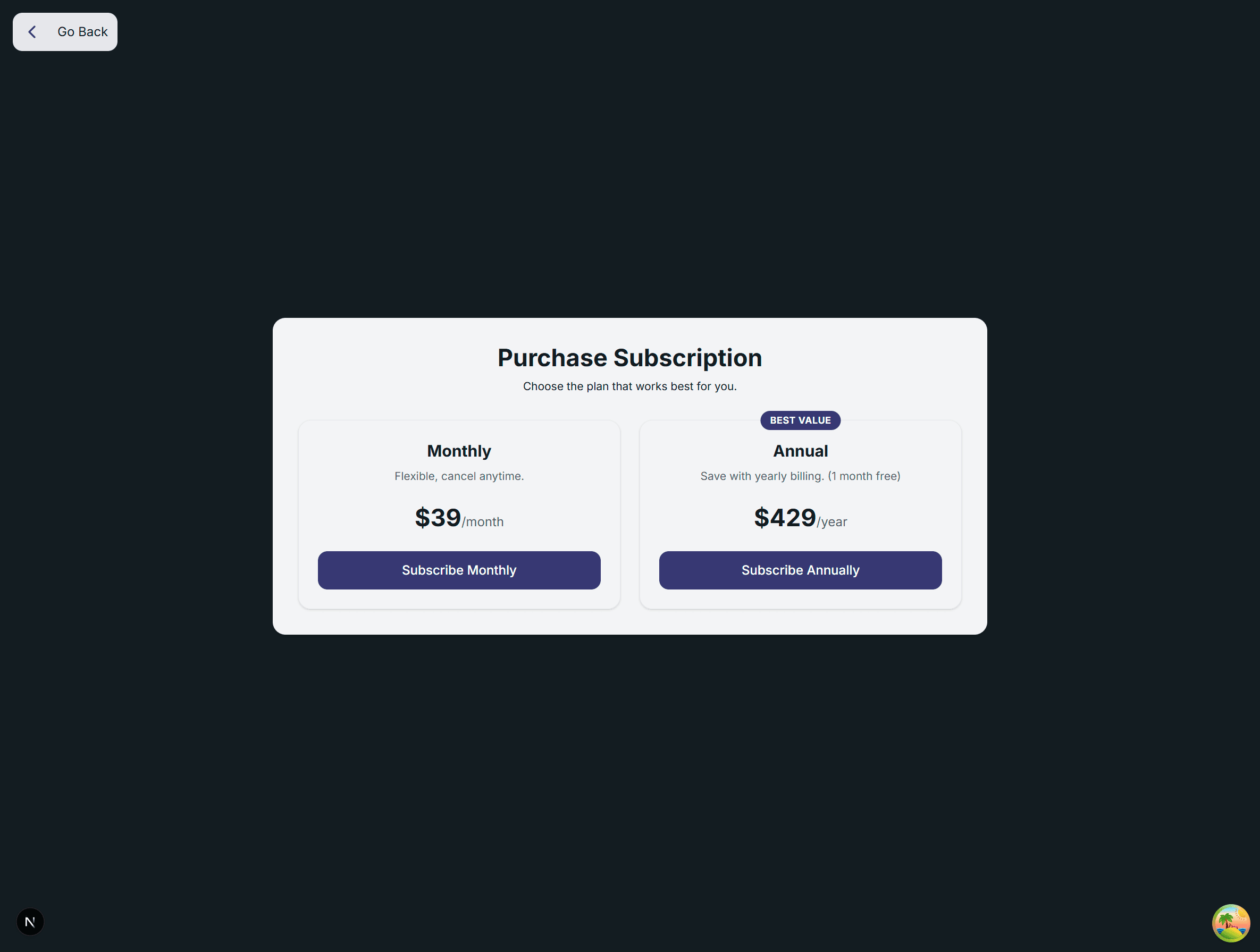
The current subscription plan is All-in-One, available with monthly or annual billing. It includes unlimited watermark-free reports and Back of House. You can also purchase:
- Additional inspector seats for teams
- Pay-as-you-go report credits
Job pay splits and lean area pricing modifiers are available with All-in-One / Teams. They are not sold as a separate SKU or add-on. Paid inspector seats remain the only team-related seat purchase and are distinct from those ops tools.
On the web Account page, choose All-in-One and select Subscribe to All-in-One. Existing subscribers may still see a legacy plan on their account.
Mobile account management
Mobile Settings → Subscription & Account shows your tier, status, trial end date, and report balance when applicable. Mobile does not show plan prices or a purchase button. Select Manage Account on Web for billing, purchases, and upgrades.
Viewing Your Subscription Status
Account Settings
Access your subscription information through:
- Navigate to Account Settings from the main menu
- View your Subscription Details section
Your subscription status will show one of the following:
- Active: Your subscription is current and active
- Trialing: You're in your 30-day free trial period
- Past Due: Payment is overdue but access continues temporarily
- Unpaid: Payment failed and needs attention
- Canceled: Subscription is cancelled but may have remaining access
- Free: Using the free tier with limited features
- Incomplete: Checkout or subscription setup did not finish
Key Information Displayed
- Current Status: Active, trialing, past due, etc.
- Renewal/Expiration Date: When your subscription renews or trial ends
- Cancellation Notices: If your subscription is set to cancel
- Reports Remaining: For users with individual report credits
Managing Your Subscription
Individual accounts: Subscription management below applies when you bill as an individual inspector. If you are a user in an organization, team subscription and billing are handled in organization management, not on the individual Manage Subscription page (you may be directed back to the main account area instead).
Accessing Subscription Management
- Go to Account Settings
- Click Manage Subscription (for active subscribers)
- You'll be redirected to the secure Stripe Customer Portal
What You Can Do in the Customer Portal
The Stripe Customer Portal allows you to:
- Update Payment Methods: Add, remove, or update credit cards
- View Billing History: Download invoices and payment records
- Change Subscription Plans: Upgrade or downgrade your plan
- Cancel Subscription: End your subscription with proper notice
- Update Billing Information: Change address and contact details
- Download Receipts: Access all payment documentation
Subscription Cancellation
If you need to cancel your subscription:
- Access the Customer Portal through Manage Subscription
- Select Cancel Subscription in the portal
- Follow the prompts to confirm cancellation
- Your access continues until the end of your billing period
Important: Once cancelled, your subscription will show "set to cancel automatically at the end of this period" in your Account Settings.
Alternative: Individual Reports
When to Use Individual Reports
Individual report purchases are ideal for:
- Occasional inspectors who don't need unlimited reports
- Users who want to try the service beyond the trial
- Seasonal inspection work
- Backup option when subscription expires
Purchasing Individual Reports
- Navigate to Account Settings
- Click Purchase More Reports
- Select the number of credits you need (whole numbers only)
- Complete checkout through Stripe.
What credits cover: Report credits are used when you download or share the main inspection report PDF without a watermark. Subscription plans that include reports (All-in-One, or an existing Basic or Pro plan, including trial) work the same way—you are not charged a per-report credit when your plan covers watermark-free exports.
A Paid invoice or Paid badge on the inspection means your client paid you for the job. It does not remove the watermark and does not unlock sharing.
When you click Use 1 Credit, SwiftReporter uses one credit for that inspection. After a credit has been used, regenerating that report does not use another credit. Creating a new inspection does not copy that unlock. Inspections you already unlocked stay unlocked.
Report credits when downloading or sharing
When you download or share the main inspection report PDF and a watermark-free export is not already covered by your plan or a used credit, the Report Payment Required modal explains what to do next.
- No credits left: The modal states you have no report credits remaining. Click Subscribe for Unlimited Reports or Purchase More Report Credits (on mobile with no credits: Purchase Report Credits). On mobile, that opens your account area in the device browser.
- Credits available: The modal shows how many credits you have. Click Use 1 Credit (N remaining after) for a watermark-free export or to share, or Download with Watermark (Free) (download only; share does not offer a watermarked option).
Watermarked main report PDF: A watermarked download is a preview: the report keeps the same layout and photo placement as the full version, but photos are limited and the PDF displays UNPAID REPORT (web) or UNPAID (mobile) across all pages. This preview treatment applies to the main inspection report PDF only. Form PDFs and signed PDFs follow their usual behavior.
Each report credit unlocks one inspection for watermark-free download and sharing. New inspections do not inherit that unlock.
iPhone: The app does not ask you to pay in the app. You can still download a PDF; it may include a watermark until you use a credit or subscribe on the web. If sharing is not already unlocked, you see Sharing Not Available on iOS and can click Open app.swiftreporter.com to continue on the web.
Subscription Status Scenarios
Active Subscription
- Unlimited report generation
- Full access to all features
- Automatic renewal on billing date
- Access to customer portal for management
Trial Period (All-in-One Trial)
- 30 days of All-in-One access
- Unlimited watermark-free reports and Back of House
- No free report credits
- No payment required during trial
- Account and mobile Settings show the trial end date
- After expiry, subscribe to All-in-One to retain that access or use pay-as-you-go report credits
Past Due or Unpaid
- Temporary continued access
- Urgent payment required
- Access to customer portal to update payment
- Service may be limited if payment remains outstanding
Canceled Subscription
- Access continues until period end
- Cannot generate new reports after expiration
- Option to resubscribe available
- Existing data remains accessible
Billing and Payments
Payment Security
- All payments processed securely through Stripe
- Industry-standard encryption and security
- PCI-compliant payment processing
- No credit card information stored in SwiftReporter
Payment Methods
Accepted payment methods include:
- Major credit cards (Visa, MasterCard, American Express, Discover)
- Bank transfers (where available)
- Other methods supported by Stripe in your region
Billing Cycles
- Monthly: Billed every 30 days from signup
- Annual: Billed yearly with potential savings
- Individual Reports: One-time payments per purchase
Troubleshooting Common Issues
Payment Failed
If your payment fails:
- Check your payment method is valid and has sufficient funds
- Update payment information in the Customer Portal
- Contact your bank if the card is being declined
- Reach out to support if issues persist
Cannot Access Customer Portal
If you can't access the management portal:
- Ensure you have an active subscription or trial
- Check your internet connection
- Try logging out and back in to refresh your session
- Contact support if the issue continues
Subscription Not Showing
If your subscription status seems incorrect:
- Wait a few minutes for system updates to process
- Refresh the app or log out and back in
- Check your email for payment confirmations
- Contact support with your subscription details
Video Storage
Every subscription tier includes a video storage allocation. Videos you add to observations and subcategories count toward this limit. Photos and PDFs are not counted.
| Tier | Included video storage |
|---|---|
| Free | 10 GB |
| Basic | 50 GB |
| Pro | 50 GB |
| Teams | 50 GB per seat (shared pool across the team) |
Your Account Settings show a "Video Storage" card with a progress bar displaying usage against your limit. The bar turns yellow at 80% usage and red at 100%.
When you reach 100% of your quota, new video uploads are blocked. You must free space by deleting videos from old inspections, or upgrade your subscription tier for more storage. There is no overage billing.
Tips for Managing Your Subscription
- Monitor Usage: Keep track of your inspection volume to choose the right plan
- Update Payment Methods: Ensure your payment information stays current
- Download Invoices: Save receipts for business expense tracking
- Plan Renewals: Be aware of renewal dates to avoid service interruption
- Consider Annual Plans: Often provide better value than monthly billing
- Use Free Trial Fully: Explore all features during your trial period
Getting Help
If you need assistance with your subscription:
- Use the in-app help system for immediate guidance
- Contact customer support through the app
- Check your email for Stripe payment notifications
- Review this documentation for common scenarios
Your subscription ensures uninterrupted access to SwiftReporter's powerful inspection and reporting tools, helping you maintain professional standards in your inspection work.