
Adding Observations
Adding Observations
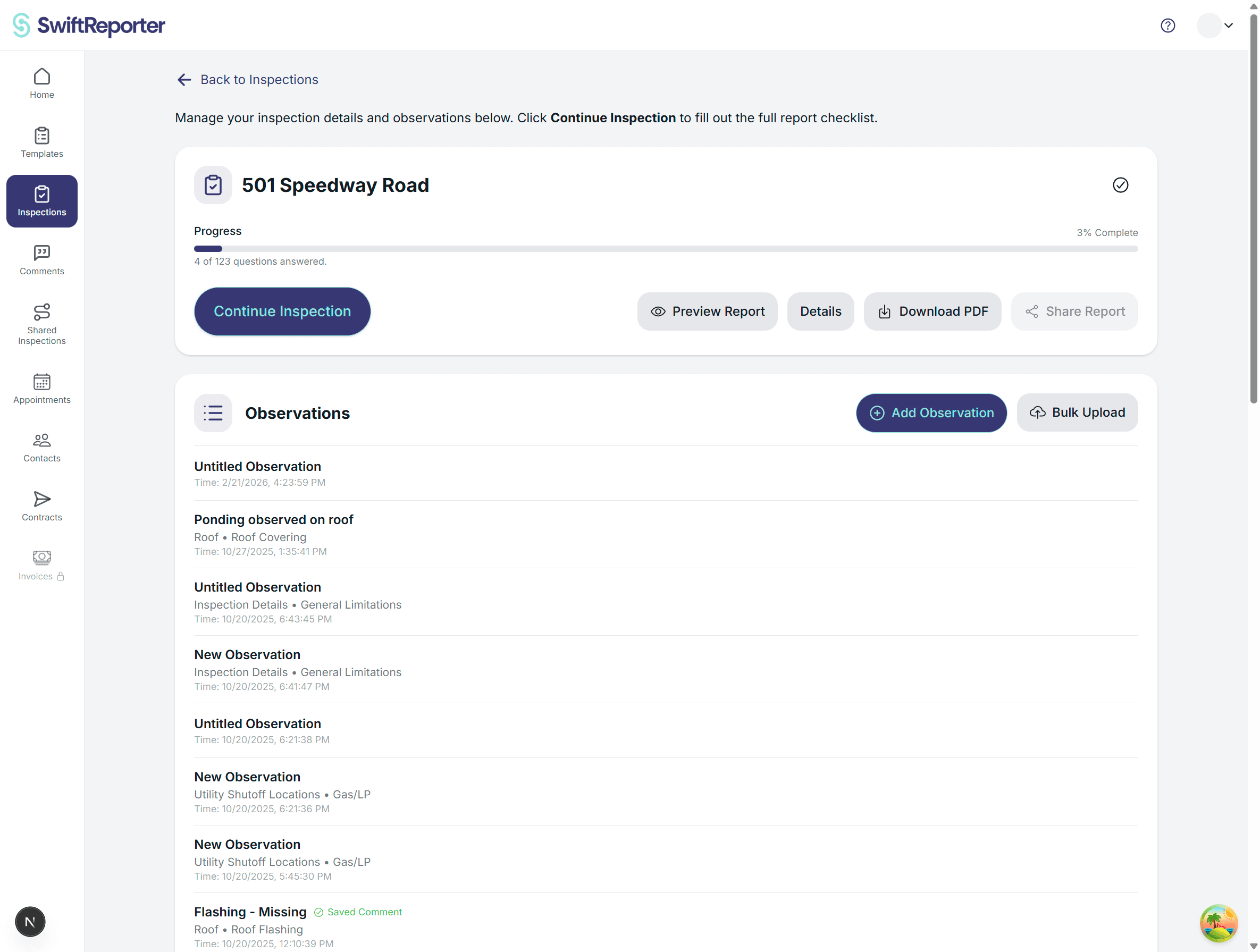
Observations are the individual findings or notes you record during an inspection. Each observation represents a specific issue, note, or point of interest that will be included in your final report.
Creating a New Observation
From the Inspection Screen
- Navigate to Inspection: Open the specific inspection where you want to add an observation
- Locate Add Button: Find the "Add Observation" button in the observations section
- Tap to Create: Tap "Add Observation"
- Automatic Setup: The app automatically:
- Creates a new observation with a unique ID
- Associates it with the current inspection
- Opens the Observation Screen for immediate editing
The Observation Screen Interface
Once created, you'll be on the Observation Screen with these key areas:
Classification Section
- Category Dropdown: Select the primary category from your template
- Searchable dropdown with template-defined categories
- Required before you can select a subcategory
- Subcategory Dropdown: Select a specific subcategory
- Options filtered based on selected category
- Enabled after you choose a category that has subcategories
- If the category has no subcategories (standard templates), Subcategory is disabled and the finding sits on the category. Those findings appear in the on-screen report and the PDF with their photos. TREC still requires a subcategory.
Content Areas
The screen displays read-only fields that get populated through various methods:
- Title: Summary of the observation
- Description: Detailed description of the finding
- Location: Specific location within the property
- Recommendation: Suggested actions or repairs
Content Capture Methods
Audio Recording
- Record Button: Large circular button at the bottom center
- Voice Notes: Record your spoken observations
- Automatic Transcription: Audio is transcribed to text automatically
- Multiple Recordings: Add multiple audio clips per observation
Photo Documentation
- "Take Photos" Button: Located at bottom right
- Camera Integration: Opens full camera interface
- Photo Grid: View and manage attached photos
- Photo Annotations: Add markings and notes to photos
AI-Powered Features
Smart Summarization
- Summarize Button: A clearly labeled Summarize action is available on every observation, on both web and mobile.
- Saves first, then runs: When you tap Summarize, the app first saves any pending changes (description text, transcription, etc.) and then runs the summary. You don't need to save manually first.
- Works with optional fields unset: The save-first step succeeds even when optional observation fields (for example severity) are not filled in. You don't have to pick a severity before tapping Summarize — if Summarize fails because severity is empty, that's a defect to report, not expected behavior.
- No-input short-circuit: If the observation has no real input — no description text, no transcribed audio, and no photos — Summarize exits immediately without calling the AI. You'll see no field changes. Add at least one of those inputs and try again.
- Automatic Analysis: AI analyzes your available transcriptions, photos, and existing observation text
- Customer-ready prose: The summary is written as the finding a paying customer will read. It is impersonal and present-tense, doesn't name "the inspector," and doesn't reference the audio, transcript, or photos. It uses the active template's industry vocabulary (for example marine on a marine template) and your template's configured severity labels.
- Field Population: Automatically fills in:
- Observation title
- Detailed description
- Location information
- Recommended actions
- Appropriate category/subcategory classification
AI Activation Requirements
The AI summarization feature becomes available when:
- You have at least one transcription, photo, or description entered
- Audio recordings you want included have been transcribed
- The observation has new content since the last save (the save-first step handles this for you)
Workflow Best Practices
Recommended Process
- Record First: Start by recording your spoken observations
- Add Photos: Capture relevant images while on-site
- Wait for Transcription: Allow audio to be processed
- Use AI Summary: Tap "Summarize" to auto-populate fields
- Review and Edit: Verify the AI-generated content is accurate
- Categorize: Ensure proper category and subcategory selection
Manual Entry
While AI can populate fields, you can also:
- Manually select categories and subcategories
- Enter a description and use "Summarize" even without audio
- Review and modify AI-generated content
- Add additional context not captured in recordings
Data Management
Auto-Save
- Changes are automatically saved as you work
- No manual save required
- Real-time synchronization with the server
Status Tracking
- Draft Status: New observations start in draft mode
- Complete Status: Marked complete after AI processing
- Dirty Flag: Tracks when content has been modified
Navigation
Returning to Inspection
- Use the back navigation to return to the Inspection Screen
- Your observation is automatically saved and appears in the observations list
Camera Interface
- "Take Photos" opens a modal camera interface
- Close button returns you to the observation screen
- Photos are automatically associated with the observation
Tips for Effective Observations
🎤 Audio Quality: Speak clearly and in a quiet environment for better transcription accuracy.
📸 Photo Strategy: Take photos before and after any issues, and include overview shots for context.
🏷️ Categorization: Proper categorization helps organize your final report effectively.
🤖 AI Review: Always review AI-generated content for accuracy - it's a starting point, not the final word.
📝 Completeness: Include enough detail that someone reading the report will understand the issue and recommended action.