
Understanding the Report Structure
Understanding the Report Structure
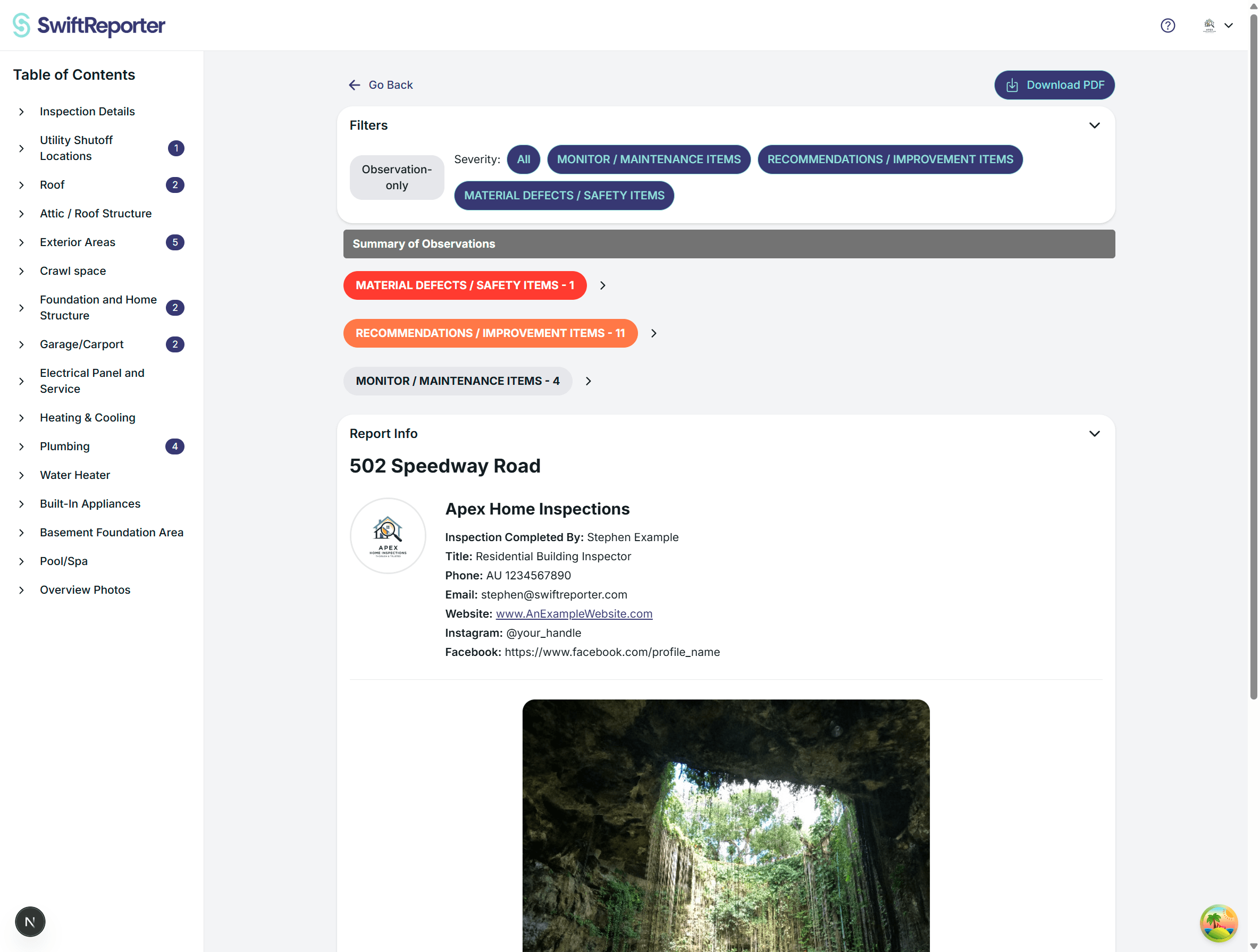
Once you generate a report in SwiftReporter, it follows a standardized structure to ensure clarity and consistency. Understanding this structure helps you quickly locate information and efficiently edit the report before finalization.
The report structure is primarily determined by your selected template, which organizes all content - including applied comments, required note selections, and template questions - into a professional, logical format.
Standard Report Components
While the exact content and order can be influenced by the template selected for the inspection, reports generally include the following sections:
1. Cover Page / Header
Standard Information:
- Inspection Title / Property Address
- Inspection Date & Time
- Inspector Name & Contact Information
- Client Name & Information (if applicable)
- Report ID / Version
Template-Specific Content:
- Custom header information from template settings
- Template-specific disclaimers or notices
- Branding elements as configured in template
2. Table of Contents (Optional)
- Automatically generated for longer reports
- Links to major sections and categories
- Organized according to template structure
- Includes page numbers for easy navigation
3. Introduction / Scope of Work
Template-Driven Content:
- Pre-configured introductory text from template
- Scope limitations and disclaimers
- Methodology and standards references
- Template-specific information sections
Required Note Integration:
- General inspection limitations
- Weather conditions during inspection
- Scope of work limitations
- Standard disclaimers and notices
4. Summary of Findings (Optional)
High-Level Overview:
- Critical issues identified during inspection
- Safety concerns requiring immediate attention
- Priority recommendations from applied comments
- Summary of major defects and observations
AI-Enhanced Content:
- Automatically generated summary points
- Prioritized findings based on severity
- Key recommendations from comment library
- Executive summary for busy clients
5. Detailed Observations (Core Section)
This is the primary content section, organized by template structure and containing all applied comments, required notes, and observations.
Report Sections (optional)
If the template has Report Sections turned on, the report's heading hierarchy gains an extra top level above categories:
- Report Section → top-level heading that groups related categories
- Category → next level down (e.g., Electrical System)
- Subcategory → row-level emphasis inside the category
Sections appear in the inspection completion view, the preview, the Table of Contents, and the generated PDF — anywhere headings are shown. Templates without Report Sections show a flat category-then-subcategory hierarchy as before.
Category Organization
Main Categories (e.g., Electrical System, Plumbing System, HVAC System):
- Category Headers: Major inspection areas from template
- Category Information: Template-specific introductory text
- Category Questions: Template questions answered at category level
- Category-level observations (standard templates): If a category has no subcategories, findings sit on the category. They appear in the on-screen report and in the PDF with their photos, after any subcategories. TREC reports still require a subcategory; observations and images live under subcategories only.
Subcategory Integration
Subcategory Sections (e.g., Main Panel, GFCI Outlets, Lighting Fixtures):
- Subcategory Headers: Specific component areas
- Information Text: Template-provided context and guidance
- Required Notes: Mandatory note selections specific to subcategory
- Template Questions: Subcategory-specific form field responses
- Applied Comments: Comments from library applied as observations
- Custom Observations: Manually created inspection findings
Content Type Integration
Each subcategory section typically contains multiple content types:
Required Notes:
Foundation Type: Concrete slab foundation

Foundation Recommendations:
- Ensure adequate drainage around foundation perimeter
- Monitor for settlement cracks during seasonal changes
- Maintain proper grading to direct water away from structure
Template Questions:
Foundation Age: Approximately 15 years
Previous Repairs: Minor crack repairs noted in southeast corner
Accessibility: Full foundation perimeter accessible for inspection
Applied Comments (Defect Type):
GFCI Outlet Not Working

Description: GFCI outlet in kitchen does not reset when tested.
Pressing test button does not trip the outlet, and reset button has no effect.

Recommendation: Replace GFCI outlet and verify proper wiring connections.
Test all downstream outlets to ensure proper GFCI protection.

Severity: Material Defects/Safety
Location: Kitchen counter near sink
Applied Comments (Note Type):
Electrical Safety Notice

Description: All electrical repairs and modifications should be performed
by licensed electricians in accordance with local electrical codes.
Permit may be required for certain types of electrical work.
Custom Observations:
Unusual Electrical Configuration

Description: Non-standard electrical configuration observed in basement
panel. Additional circuits appear to have been added without proper
documentation.

Recommendation: Have licensed electrician evaluate configuration and
provide documentation for any non-standard installations.
Photos, Videos, and Media:
- High-resolution inspection photos
- Annotated images highlighting specific issues
- Video thumbnails with a play icon overlay — each is a clickable link that opens the digital report where the video can be played
- Photo captions derived from comments or custom descriptions
- Organized by observation or subcategory
- In TREC reports, every photo attached to a subcategory or observation appears in the generated report, with spacing above observation titles for readability
- Inline question photos — When a template question or required note has Allow photos turned on, photos captured for that item appear in an inline grid directly under the question's answer (rather than under the subcategory's general photo plate). These inline grids contain photos only.
6. Appendix / Attachments (Optional)
Template-Specific Materials:
- Standard forms and checklists
- Regulatory references and codes
- Template-specific documentation
- Additional disclaimers or notices
Inspection-Specific Content:
- Full audio transcriptions
- Additional photos not included in main report
- Supporting documentation
- Client-requested supplementary materials
7. Disclaimer / Closing
Template-Provided Content:
- Standard professional disclaimers
- Limitation of liability statements
- Inspection methodology references
- Contact information for follow-up
Content Organization Principles
Template-Driven Hierarchy
Logical Flow:
- Template Categories: Main inspection areas in template-defined order
- Subcategories: Component-specific sections within each category
- Required Notes: Mandatory selections appear first in each subcategory
- Template Questions: Form field responses integrated contextually
- Observations: Applied comments and custom findings organized logically
- Media: Photos and audio positioned to support text content
Content Type Prioritization
Within Each Subcategory:
- Information Text: Template-provided context appears first
- Required Notes: Mandatory note selections follow
- Template Questions: Form field responses appear next
- Observations: Applied comments and custom observations follow
- Media Content: Photos and annotations support all text content
Professional Presentation
Consistent Formatting:
- Headers: Standardized category and subcategory formatting
- Field Labels: Clear labeling for all content types
- Content Flow: Logical progression from general to specific
- Visual Hierarchy: Clear organization for easy reading
Quality Assurance:
- Content Integration: Seamless blending of different content types
- Professional Language: Consistent tone throughout report
- Complete Information: All applied comments and notes included
- Accurate Representation: Faithful reproduction of inspection findings
Content Source Identification
Understanding where report content originates helps with editing and quality control:
Comment Library Content
- Applied Comments: Content from your personal comment library
- Defect Observations: Issues requiring action with recommendations
- Note Observations: Informational content and context
- Customized Applications: Comments modified during inspection
Template-Required Content
- Required Notes: Mandatory note selections from template
- Template Questions: Form field responses specific to template
- Information Text: Template-provided context and guidance
- Structural Organization: Category and subcategory framework
Custom Inspection Content
- Manual Observations: Observations created during inspection
- Site-Specific Details: Unique circumstances and findings
- Custom Modifications: Personalized additions to standard content
- Additional Context: Inspector-added clarifications and details
Navigation and Usability
Report Navigation Features
Table of Contents:
- Clickable Links: Direct navigation to specific sections
- Page References: Easy location of content in longer reports
- Hierarchical Organization: Clear section and subsection structure
Visual Organization:
- Clear Headers: Distinctive formatting for categories and subcategories
- Content Separation: Clear delineation between different content types
- Consistent Layout: Predictable structure throughout report
Reading Experience
Professional Presentation:
- Logical Flow: Content organized for easy comprehension
- Complete Information: All necessary details included
- Clear Language: Professional yet accessible terminology
- Visual Support: Photos and media enhance text content
Quality Features:
- Comprehensive Coverage: All template requirements addressed
- Accurate Content: Faithful representation of inspection findings
- Professional Format: Suitable for client presentation
- Consistent Standards: Uniform quality throughout report
Customization and Flexibility
Template Customization Impact
Flexible Structure:
- Custom Categories: Templates can define unique category structures
- Specialized Content: Industry-specific or property-type-specific organization
- Custom Requirements: Template-specific required notes and questions
- Branding Integration: Template-specific formatting and presentation
Content Adaptation
Dynamic Organization:
- Content-Driven Structure: Report adapts to included content
- Flexible Sections: Sections appear only when relevant content exists
- Scalable Format: Handles varying amounts of content efficiently
- Professional Standards: Maintains quality regardless of content volume
Understanding the report structure helps you create more effective inspections by knowing how your applied comments, required note selections, and template responses will appear in the final professional document. This knowledge enables you to make strategic decisions during the inspection process to ensure comprehensive, well-organized reports.
Refer to the Editing the Report section for details on how to modify these sections after generation.