
Viewing the Report
Viewing the Report
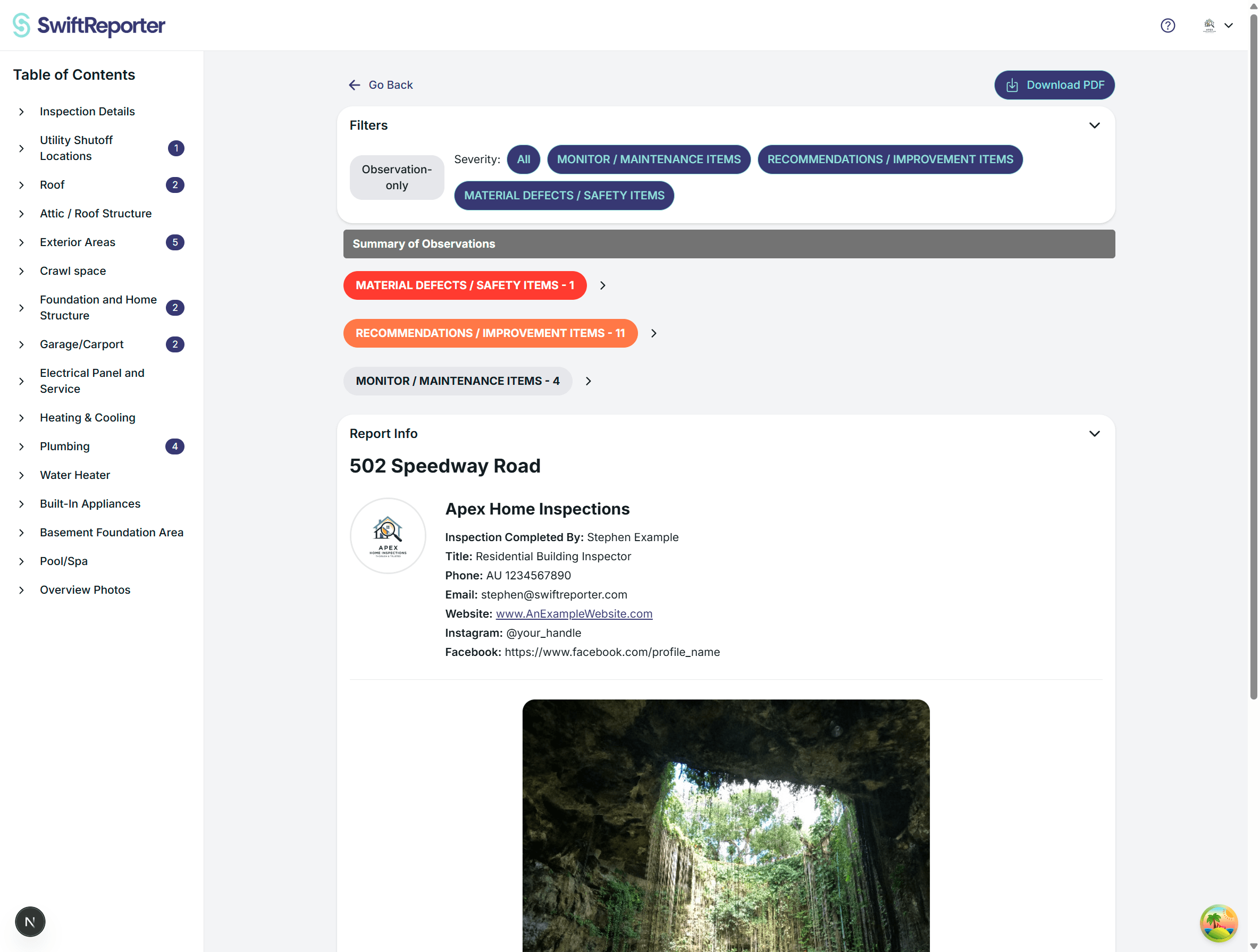
After you've generated a report for an inspection, you can easily view it directly within the SwiftReporter app. The report displays all your applied comments, required note selections, and template responses in a professional, organized format.
Search the digital report
Open the digital report and use keyword search. Type a word from a finding, note, or section. The report jumps to the matching content.
Repair cost and time
A defect can show an estimated repair cost and the time to repair in the report. Enter those values on the defect. They appear with that finding for you and for anyone reading the digital report.
Additional Docs
Attach an extra PDF to the inspection. The customer portal lists that file under Additional Docs, separate from the main report.
Hold the report until it is signed or paid
You can hold the shared report until the agreement is signed, until it is paid, or both. Each hold applies only when that switch is on. With a switch off, that condition does not block the report.
To hold the report until the invoice is paid:
- Open Account.
- On the Invoices card, under Default payment policy, turn on Require payment before releasing the report.
- Click Save payment policy.
The help under that switch is Use this to hold reports until the invoice is paid. This default applies to new invoices.
First time a report is opened
The first time someone opens the report, you get one email or one push. Opening or refreshing that same report again does not send another alert.
Accessing the Report
Navigation to Report
- Navigate to the Inspection: Open the specific inspection for which you generated the report from the main inspection list on the Home Screen
- Go to the Report Screen: Within the inspection details, navigate to the report screen, often labeled "View Report", "Report", or similar
- Report Loading: The system loads the complete report with all integrated content
Report Display Components
The report screen displays comprehensive inspection information organized according to your selected template:
- Template Structure: Categories and subcategories from your chosen template (with Report Sections shown as a top-level grouping when the template uses them)
- Applied Comments: Comments from your library displayed as observations
- Required Notes: Mandatory note selections integrated into appropriate sections
- Template Questions: Form field responses displayed contextually
- Media Content: Photos, annotations, and audio transcriptions
Web Layout: Left Table of Contents
On the web, both the Preview and the Report Editor show a Table of Contents drawer down the left side of the screen.
- Default-open on desktop: The TOC is open by default when the screen is wide enough.
- Instant jump: Click any entry to scroll directly to that category. The view jumps in one step rather than walking through every category between your current position and the target.
- Only the target expands: In long reports, jumping to a category expands only that category. Categories you skipped over stay collapsed so the page stays fast and scroll position is predictable.
- Sections in the TOC: When the template uses Report Sections, sections appear at the top level of the TOC with their categories nested under them.
- Toggleable on narrow screens: Use the TOC toggle to open or close the drawer to free up horizontal space.
Understanding Report Content Display
Applied Comments Presentation
Defect Comments (Observations): When you applied defect comments during inspection, they appear as complete observations:
GFCI Outlet Not Working

Description: GFCI outlet in kitchen does not reset when tested.
Pressing test button does not trip the outlet, and reset button has no effect.

Recommendation: Replace GFCI outlet and verify proper wiring connections.
Test all downstream outlets to ensure proper GFCI protection.

Severity: Material Defects/Safety
Location: Kitchen counter near sink
Photos: [Thumbnail images of related photos]
Note Comments (Informational Content): Note comments appear as informational sections providing context:
Electrical Safety Notice

All electrical repairs and modifications should be performed by licensed
electricians in accordance with local electrical codes. Permit may be
required for certain types of electrical work.
Required Notes Display
Dropdown Note Selections: Single-choice required notes appear as labeled fields:
Foundation Type: Concrete slab foundation

Weather Conditions: Clear skies, 72°F, ideal inspection conditions

Inspection Limitations: Full perimeter accessible for inspection
Checkbox Note Selections: Multiple-choice required notes appear as lists under group titles:
Safety Recommendations:
• All electrical work must be performed by licensed electricians
• GFCI protection required in all wet locations
• Arc-fault circuit interrupters recommended for bedroom circuits
• Annual electrical inspection recommended for older homes
Template Question Responses
Text Questions: Free-form text responses appear with question labels:
Property Age: Approximately 25 years, built in 1999

Previous Electrical Work: Kitchen renovation completed in 2018 with
updated wiring and GFCI outlets. All work performed with proper permits.

Client Concerns: None reported. Client satisfied with electrical system
performance.
Multiple Choice Questions: Selected options displayed clearly with context:
Electrical Panel Type: Main breaker panel with copper bus bars

Panel Condition: Good - shows normal wear appropriate for age

Code Compliance: Meets current local electrical codes
Navigating the Report View
Report Structure Navigation
Category Organization:
- Main Categories: Major inspection areas (e.g., Electrical System, Plumbing System)
- Subcategory Sections: Specific components within each category
- Content Integration: Applied comments, notes, and questions seamlessly integrated
Visual Organization:
- Clear Headers: Category and subcategory titles prominently displayed
- Content Grouping: Related content logically grouped together
- Professional Layout: Consistent formatting throughout report
- Visual Hierarchy: Easy-to-follow structure from general to specific
Content Type Identification
Visual Cues:
- Comment-Based Observations: Formatted as standard observations with recommendations
- Required Notes: Appear as labeled fields or bulleted lists
- Template Questions: Display with question context and responses
- Custom Content: Manually added observations and details
Content Sources: Understanding where content originated helps with review and editing:
- Applied Comments: Professional observations from your comment library
- Required Selections: Mandatory choices made during inspection
- Template Responses: Answers to template-specific questions
- Custom Additions: Inspection-specific details and modifications
Interactive Elements
Photo, Video, and Media Viewing:
- Photo Thumbnails: Click to view full-size images. Photos still load in the HTML preview when the filename contains spaces.
- Cover page: If the template has Enable Cover Page off, the report has no cover page. That is expected.
- Video Thumbnails: Click to play videos inline. Videos show a play icon overlay on their thumbnail. If a video is still processing, a status message appears instead of playback controls. On the web report view, the video player opens at the full viewport with a backdrop so playback is not confined to a small nested section.
- Annotations: View photo markups and highlights
- Audio Transcriptions: Read processed voice note content
- Media Organization: Visual content organized by observation or section
Navigation Features:
- Scrolling: Smooth vertical scrolling through report content
- Section Jumping: Quick navigation to specific categories or subcategories
- Content Search: Find specific terms or observations within report
- Zoom Functionality: Adjust text size for comfortable reading
Content Quality Review
Reviewing Applied Comments
Comment Accuracy: When viewing applied comments in the report, verify:
- Accurate Application: Comment content matches actual inspection findings
- Appropriate Severity: Severity levels reflect actual conditions
- Location Specificity: Location information is accurate and helpful
- Recommendation Relevance: Recommendations are appropriate for the situation
Customization Recognition:
- Modified Content: Notice any customizations made during comment application
- Added Details: See inspection-specific information added to standard comments
- Context Enhancement: Observe how site-specific details enhance standard content
Required Notes Verification
Selection Appropriateness: Review required note selections for:
- Accuracy: Selections accurately reflect inspection conditions
- Completeness: All mandatory selections have been made
- Relevance: Selected notes are appropriate for the property type
- Professional Presentation: Selections enhance report quality
Content Integration:
- Logical Placement: Notes appear in appropriate report sections
- Context Alignment: Note selections support observation content
- Professional Flow: Notes integrate smoothly with other content
Template Question Assessment
Response Quality: Evaluate template question responses for:
- Completeness: All questions have been answered appropriately
- Accuracy: Responses reflect actual inspection findings
- Professional Language: Answers use appropriate terminology
- Context Support: Responses support overall report narrative
Report Quality Indicators
Professional Presentation
Visual Quality:
- Consistent Formatting: Uniform presentation throughout report
- Clear Organization: Logical flow from category to subcategory
- Professional Language: Consistent, professional tone
- Complete Information: All necessary details included
Content Integration:
- Seamless Blending: Different content types work together naturally
- Logical Flow: Information progresses logically through report
- Comprehensive Coverage: All inspection areas addressed appropriately
Completeness Verification
Required Content:
- All required notes have been selected and appear correctly
- Template questions have been answered and display properly
- Applied comments accurately represent inspection findings
- Photos and media are properly integrated
- Professional language maintained throughout
Quality Standards:
- Report structure follows template organization
- Content is accurate and complete
- Professional presentation maintained
- Client needs addressed appropriately
Next Steps After Viewing
Report Actions
Once you have reviewed the report, you may want to:
Content Refinement:
- Edit the Report: Make corrections or additions to improve accuracy
- Quality Enhancement: Refine content for optimal professional presentation
- Client Customization: Adjust content for specific client needs
Report Delivery:
- Download the Report: Export as PDF or other formats for client delivery
- Electronic Sharing: Share report electronically with clients
- Print Preparation: Prepare hard copies if required
Quality Assurance
Final Review Points:
- Content Accuracy: Ensure all applied comments accurately reflect findings
- Professional Standards: Verify report meets professional presentation standards
- Client Requirements: Confirm report addresses client needs and expectations
- Complete Coverage: Ensure all inspection areas are appropriately documented
Pre-Delivery Checklist:
- All applied comments are accurate and complete
- Required note selections are appropriate
- Template question responses are informative
- Photos and media enhance report content
- Professional language is consistent throughout
- Report structure is logical and easy to follow
Understanding Report Benefits
Template Integration Advantages
Consistency Benefits:
- Standardized Structure: Template ensures consistent report organization
- Professional Presentation: Uniform formatting and layout
- Complete Coverage: Template structure ensures comprehensive inspections
- Quality Assurance: Template requirements help maintain standards
Efficiency Gains:
- Comment Library Leverage: Reusable content saves time while maintaining quality
- Required Notes: Standardized information capture
- Template Questions: Systematic information gathering
- Automated Organization: System organizes content professionally
The report viewing experience showcases how your inspection work - including applied comments, required note selections, and template responses - comes together in a comprehensive, professional document that accurately represents your inspection findings and meets industry standards.
ℹ️ Note: The exact layout and presentation may vary based on your selected template, but the core principles of organization and content integration remain consistent across all templates.
After the report is shared
When the report is complete and shared, you can enable a Repair Request on the inspection hub so parties select findings and respond in the portal. See Repair Request. Negotiation does not change the report view itself—findings stay read-only for viewers.