
Square Appointments Integration
Square Appointments Integration
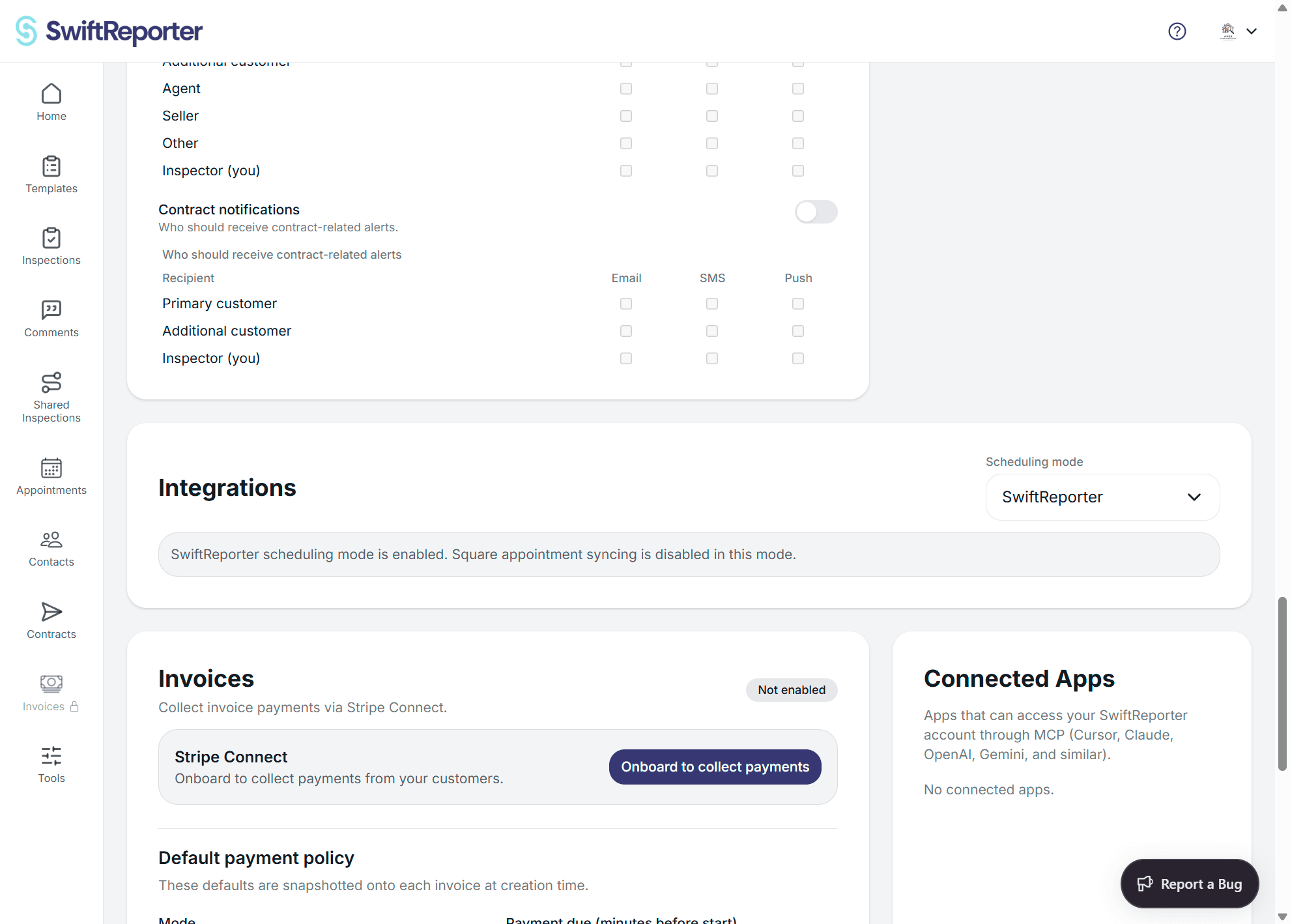
SwiftReporter can connect to Square to show upcoming Square Appointments and help you start inspections faster using appointment details.
Connecting Square
- Go to Account.
- Find the Square section and select Connect Square.
- Sign in to Square and approve access.
- Return to SwiftReporter. The account page will show Square as connected.
Filtering appointments
After connecting, you can filter which appointments appear:
- Location: choose a Square business location (or All).
- Team member: filter by provider/staff (or All).
- Services: choose which Square services represent inspections so non-inspection bookings can be hidden.
Using appointments to create inspections
From the Square appointments list, you can create an inspection using the appointment details. SwiftReporter can prefill:
- Client name, email, and phone (when available)
- Address fields (when available)
- Inspection date/time
If an appointment is already linked to an inspection, you can open the linked inspection directly.
Paid status
Appointments may show as paid or unpaid based on information available from Square. Use this as a helpful indicator when prioritizing work.
Troubleshooting
- If no appointments appear, try selecting All locations and broadening service filters.
- If team members or services do not load, refresh the Square data from the account page.
- If you disconnect Square, you can reconnect at any time from the account page.