
Template Settings and Configuration
Template Settings and Configuration
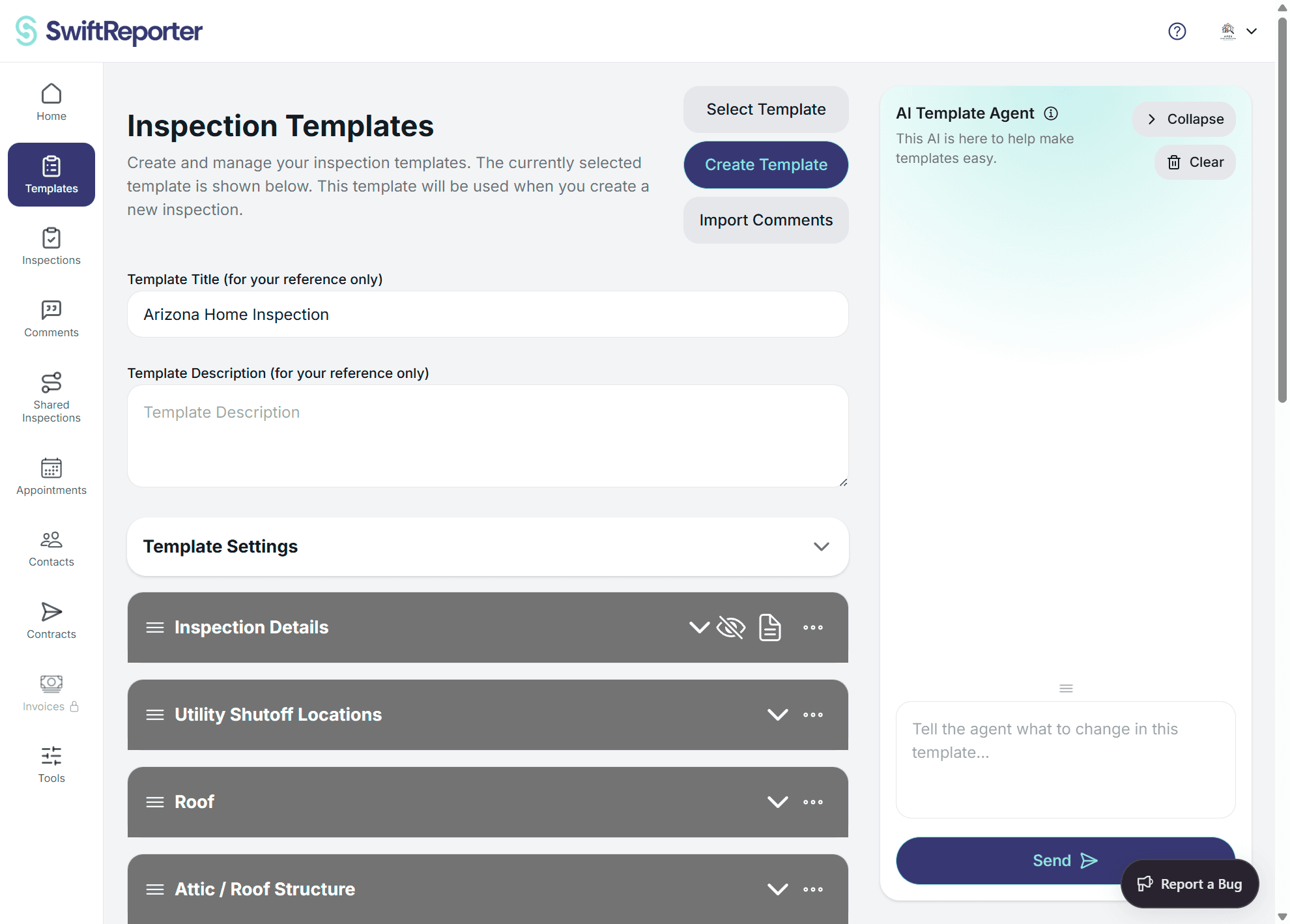
Template settings control how your inspections are conducted and how reports are formatted. These powerful configuration options allow you to customize the inspection workflow and report output to match your specific needs and client requirements.
Overview
Template settings provide control over:
- Observation Features: Severity ratings and summary generation
- Report Formatting: Cover pages, table of contents, and layout
- Workflow Options: Required completions and data collection
- Advanced Features: AI-powered enhancements and customizations
- Quality Assurance: Consistency and professional presentation
Accessing Template Settings
In Template Editor
- Open Templates: Navigate to the Templates section
- Select Template: Choose your active template or any template to edit
- Template Settings: Find the "Template Settings" section (collapsible)
- Configure Options: Adjust settings using toggle switches and options
During Report Editing
- Edit Mode: While editing a report, access template settings
- Per-Report Customization: Modify settings for specific inspections
- Template Updates: Changes can update the template or apply to current report only
- Real-time Preview: See changes immediately in report preview
Industry
The Industry dropdown sits at the top of the Template Settings panel and controls which professional vocabulary the template uses.
Options:
- Home Inspection (default): Standard residential and commercial inspection workflow.
- Marine Survey: Switches AI assistance, AI Template Wizard placeholders, and the report's cover bar, second-page identifier block, and running page header to marine-survey vocabulary. Inspections that use the template show a single Vessel Identifier field on Inspection Details in place of Property Address.
Notes:
- Industry is a per-template setting. Changing it on one template does not affect any other template, inspection, or organization.
- Templates created before this setting was added behave as Home Inspection by default; no migration is required.
- When the active template is set to Marine Survey, residential-only entry points (Spectora import, HomeGauge import, Horizon import, TREC mode, wind-mit / fixed-PDF templates) are hidden in the editor.
- The Form PDF (form template) capability is available for every Industry, including Marine Survey.
Observation Settings
Enable Severity
Controls whether observations include severity ratings.
When Enabled:
- Severity Levels: Low, Medium, High severity options for observations
- Visual Indicators: Color-coded severity in reports
- Priority Classification: Helps prioritize inspection findings
- Client Communication: Clear importance levels for issues
When Disabled:
- Simplified Workflow: Focus on observation content without severity classification
- Streamlined Reports: Cleaner presentation without severity indicators
- Faster Entry: Reduced steps when creating observations
Best Practices:
💡 Use Severity When:
- Clients expect priority classification of issues
- Inspections involve safety or critical system concerns
- Team needs consistent priority frameworks
- Reports require professional severity indicators
💡 Skip Severity When:
- Simple informational inspections
- Clients prefer simplified reports
- Focus is on documentation rather than prioritization
Enable Observation Summary
Creates an automatic summary section with references to all observations.
Summary Features:
- Automated Generation: AI creates comprehensive summary of all findings
- Reference Links: Each summary item links to detailed observation
- Executive Overview: High-level view of inspection results
- Professional Presentation: Polished summary for client review
Summary Configuration:
- Summary Category: Designate which category contains the summary
- Auto-Population: Summary updates automatically as observations are added
- Customizable Content: Edit summary content while maintaining references
- Report Integration: Summary appears prominently in final reports
When to Use:
✅ Ideal For:
- Complex inspections with many observations
- Executive summary requirements
- Professional commercial inspections
- Client preference for overview sections
❌ Skip For:
- Simple inspections with few findings
- Clients who prefer detailed-only reports
- Time-sensitive inspections
- Templates focused on specific systems only
Report Sections
Report Sections are an optional grouping that sits above categories. When the feature is on, related categories appear under a shared section heading in the inspection editor, the preview, the table of contents, and the generated PDF. When the feature is off, every template behaves exactly as before — a flat list of categories with no section heading.
Turning Report Sections On
- Open Template Settings: Expand the Template Settings panel inside the template editor.
- Enable Report Sections: Toggle the Report Sections option on. This unlocks the section controls inside the main template editor.
- Add Sections in the Editor: Sections themselves are added, renamed, ordered, and deleted in the main template editor alongside categories — not from the settings panel. See Creating and Editing Templates for the editor workflow.
What Sections Affect
- Inspection completion and preview: Each section appears as a heading bar above its categories.
- Table of Contents (web): Sections appear as navigable entries that jump straight to that section.
- PDF report: Heading hierarchy shifts so the section sits at the top level, the category sits one level below it, and the subcategory carries a stronger emphasis at row depth.
- Observations and notes: How inspectors record findings does not change. Observations and notes still attach to categories. A section is only a presentation grouping.
Turning Report Sections Off
Toggling Report Sections off in Template Settings hides section controls in the editor and reverts the template to a flat list of categories at every surface (editor, completion, preview, TOC, PDF). The categories themselves and their content are preserved.
Backwards Compatibility
Templates created before Report Sections shipped continue to render as a flat list of categories with no migration needed. The feature only changes behavior when an author turns it on.
Report Format Settings
Enable Cover Page
Controls whether reports include a professional cover page.
Cover Page Contents:
- Inspection Information: Date, type, and scope of inspection
- Property Details: Address, client information, and property data
- Inspector Information: Credentials, contact details, and company info
- Cover Photo: Primary property image when available
- Professional Branding: Company logo and professional presentation
Cover Page Benefits:
- Professional Appearance: Polished, business-ready presentation
- Client Confidence: Establishes credibility and professionalism
- Information Summary: Quick reference for key inspection details
- Brand Recognition: Consistent company presentation
When to Enable:
✅ Use Cover Page For:
- Client-facing reports requiring professional presentation
- Commercial inspections and formal assessments
- Reports that will be distributed to multiple parties
- Situations requiring company branding and credibility
When to Disable:
❌ Skip Cover Page For:
- Internal reports or quick assessments
- Situations prioritizing brevity over presentation
- Digital-only reports where cover pages aren't needed
- Template testing or development work
When Enable Cover Page is off, the generated PDF has no cover page. That is expected, not a generation error.
Enable Table of Contents
Controls whether reports include a detailed table of contents.
Table of Contents Features:
- Section Navigation: Lists all categories and subcategories
- Page References: Shows page numbers for easy navigation
- Hierarchical Structure: Clear organization of report content
- Quick Access: Jump to specific sections efficiently
Navigation Benefits:
- User Experience: Easier navigation for readers
- Professional Standards: Meets formal report requirements
- Large Report Management: Essential for comprehensive inspections
- Reference Tool: Helps locate specific information quickly
When to Include:
✅ Include TOC For:
- Comprehensive inspections with many categories
- Formal reports requiring navigation aids
- Reports that will be referenced repeatedly
- Professional commercial or complex residential inspections
When to Exclude:
❌ Skip TOC For:
- Simple inspections with few categories
- Single-system or focused inspections
- Informal or internal documentation
- Situations prioritizing brevity
Advanced Settings Configuration
Settings Editor Interface
The Template Settings Editor provides:
- Collapsible Interface: Expand/collapse settings section as needed
- Toggle Switches: Simple on/off controls for each setting
- Descriptive Text: Clear explanations for each option
- Real-time Updates: Changes apply immediately
- Visual Feedback: Clear indication of current settings
Settings Categories
Industry
- Home Inspection (default) or Marine Survey — controls the AI's professional vocabulary, the Inspection Details vessel/address field, and the PDF identifier blocks.
Observation Settings
- Enable Severity: Severity rating system for observations
- Enable Observation Summary: Automated summary generation
- Summary Category Selection: Choose category for summary placement
Report Format Settings
- Report Sections: Optional grouping that places a heading above selected categories in the editor, preview, TOC, and PDF. Off by default.
- Enable Cover Page: Professional cover page inclusion
- Enable Table of Contents: Navigation and section listing
- Report Layout Options: Additional formatting controls
Backwards Compatibility
Templates created before settings were introduced automatically receive default values:
- Enable Severity: false (disabled by default)
- Enable Observation Summary: false (disabled by default)
- Enable Cover Page: true (enabled for professional appearance)
- Enable Table of Contents: true (enabled for navigation)
Settings Impact on Workflow
During Inspections
Settings affect the inspection process:
Severity Enabled:
- Additional Step: Select severity level for each observation
- Visual Indicators: Color-coding in observation interface
- Required Selection: Must choose severity before saving observations
Summary Enabled:
- Automatic Updates: Summary section updates as observations are added
- Review Process: Summary can be edited and refined
- Progress Tracking: Summary completion affects overall inspection progress
During Report Generation
Settings control report appearance:
Cover Page Enabled:
- Additional Page: Cover page appears as first page
- Formatting Impact: Affects page numbering and overall layout
- Content Requirements: Requires property and inspector information
Table of Contents Enabled:
- Navigation Page: TOC appears after cover page (if enabled)
- Page Numbering: Affects overall page count and numbering
- Section References: Links to actual content sections
Best Practices
Settings Selection Strategy
💡 Assessment Questions:
- What type of inspections will use this template?
- What are client expectations for report format?
- How complex are typical inspections?
- What level of professionalism is required?
Professional Services
✅ Recommended Settings:
- Enable Cover Page: Yes (professional presentation)
- Enable Table of Contents: Yes (easy navigation)
- Enable Severity: Yes (clear prioritization)
- Enable Summary: Consider for complex inspections
Simple/Informal Inspections
⚙️ Streamlined Settings:
- Enable Cover Page: Optional (consider client needs)
- Enable Table of Contents: Optional (based on complexity)
- Enable Severity: Optional (may simplify workflow)
- Enable Summary: Typically not needed
Commercial Inspections
🏢 Business-Focused Settings:
- Enable Cover Page: Yes (business presentation)
- Enable Table of Contents: Yes (document navigation)
- Enable Severity: Yes (risk prioritization)
- Enable Summary: Yes (executive overview)
Settings Customization
Per-Template Configuration
- Default Settings: Each template has its own settings
- Template Switching: Settings change with template selection
- Consistent Workflow: Settings ensure consistent output for template type
- Easy Modification: Change settings anytime during template editing
Per-Report Customization
- Report-Specific: Modify settings for individual inspections
- Template Preservation: Changes can be applied to current report only
- Flexibility: Adapt to specific client or situation requirements
- Override Options: Temporary modifications without changing template
Team Standardization
- Organization Templates: Consistent settings across team templates
- Training Materials: Document preferred settings for team use
- Quality Control: Standardized settings ensure consistent output
- Best Practice Sharing: Share successful setting combinations
Troubleshooting Settings
Common Issues
Settings Not Saving
⚠️ Problem: Template settings don't persist after changes
Solutions:
- Ensure you have template editing permissions
- Check internet connectivity for cloud sync
- Verify you're editing the correct template
- Try refreshing the template editor
Report Format Issues
⚠️ Problem: Report doesn't reflect setting changes
Solutions:
- Regenerate report after changing settings
- Check if changes were saved to template
- Verify settings are enabled in template used for inspection
- Clear app cache if formatting appears incorrect
Missing Settings
⚠️ Problem: Expected settings options not visible
Solutions:
- Expand the Template Settings section (collapsible interface)
- Check if template supports all settings (backwards compatibility)
- Verify app version supports all setting options
- Update template if using older version
Performance Considerations
- Cover Page Generation: May add slight processing time to reports
- Table of Contents: Requires additional processing for large reports
- Summary Generation: AI summary creation takes additional time
- Settings Sync: Changes sync across devices automatically
Advanced Configuration
Summary Category Management
- Category Selection: Choose which category contains observation summary
- Auto-Detection: System can suggest appropriate summary placement
- Custom Categories: Create dedicated summary categories
- Content Management: Edit summary content while preserving automation
Future Enhancements
- Custom Formatting: Additional report layout options
- Branding Controls: Enhanced logo and company presentation
- Client-Specific Settings: Different settings for different client types
- Advanced Summary: More sophisticated summary generation options
Integration Features
- Template Import: Settings preserved during template imports
- Export Compatibility: Settings included in template exports
- Team Sharing: Settings transfer when sharing templates
- Version Control: Settings changes tracked in template history
Getting Help
🆘 Settings Support: Contact support for assistance with complex configuration requirements 📖 Template Documentation: Reference template editing guides for detailed instructions 💡 Best Practices: Follow recommended settings for your inspection type 🔄 Updates: Stay informed about new settings and configuration options
Template settings provide powerful control over your inspection workflow and report presentation. Take time to understand each option and configure settings that best serve your clients and business requirements.