
Save Photos to Device (Mobile)
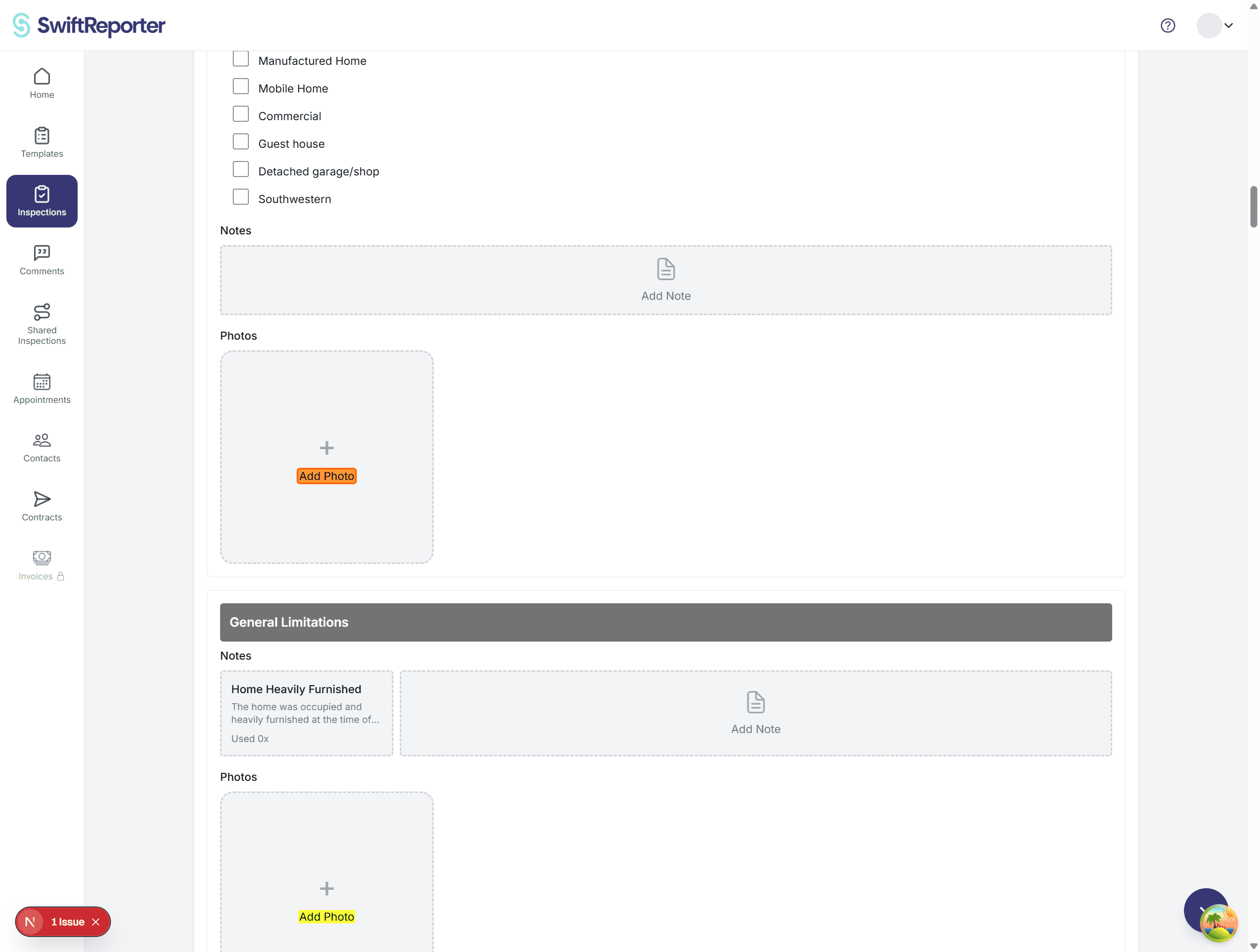
When you take a photo during an inspection using the SwiftReporter mobile app, the photo is automatically saved to your device’s photo library or camera roll in addition to being attached to the observation. This happens in the background without any extra steps.
How It Works
Whenever you capture a photo from within the app, either by tapping the camera button on an observation or by adding a photo to a subcategory, SwiftReporter immediately saves a copy of that photo to your device’s media library before uploading it to the cloud.
This happens automatically. You do not need to press any extra button or confirm anything. The moment a photo is captured, two things happen:
Why Is This Useful?
Saving photos to your device gives you an automatic local backup and makes it easier to reuse or share images outside the app when needed.
Permissions
The first time you take a photo in the app, or after an update, your device may prompt you to allow SwiftReporter access to your media library. You need to tap Allow or Allow Access to All Photos for the automatic save to work.
If you denied permission in the past and want to enable this feature, update the permission in your device settings. If permission is not granted the photo will still be attached to the observation and synced to SwiftReporter, it just will not be saved to your local camera roll.
Viewing Saved Photos
Photos are saved to your standard camera roll alongside any other photos on your device. On iOS they appear in the Recents album in the Photos app. On Android they appear in your Gallery or Photos app.
Storage Space
Saved photos use storage space on your device. If your device is running low on storage you can delete photos from your camera roll without affecting the copies stored in SwiftReporter, because the uploaded versions in the app are independent of what is on your device.