
Public Booking
Public Booking
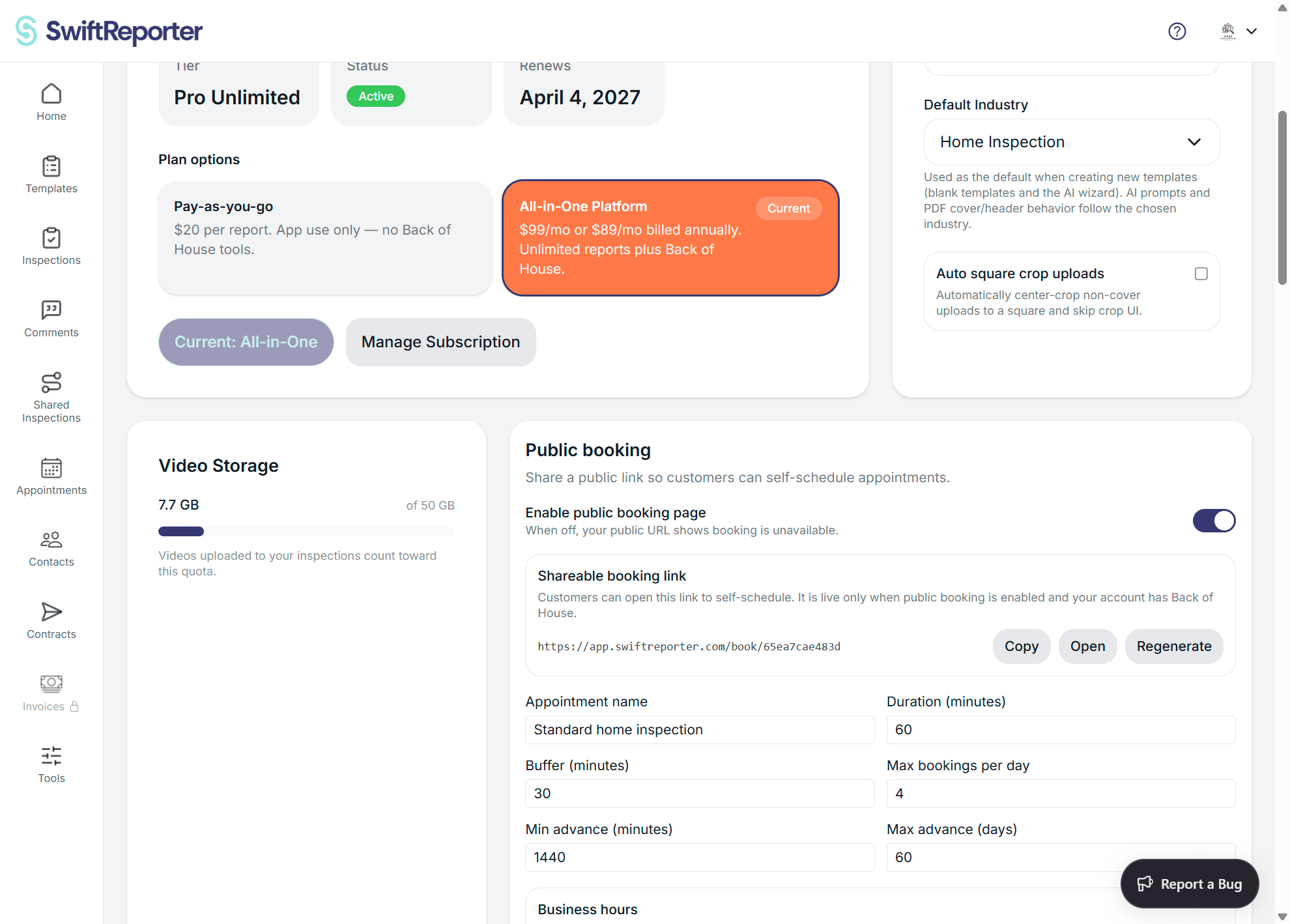
Public Booking lets customers schedule an inspection visit through a web link you share. A successful booking creates an appointment only—you still attach or create the inspection and send agreements or invoices afterward.
Before you begin
- You need Back of House access, included with All-in-One and All-in-One Trial access.
- Customers book through your web link; there is no customer booking screen in the mobile app.
Set up public booking
On the web
- Open Account and find the Public booking card.
- Turn on Enable public booking page.
- Set the appointment name, duration, buffer, daily booking limit, minimum advance time, and maximum advance window.
- Under Business hours, choose your timezone and set weekly open hours. A day you mark off is a day off. That date is not offered on the booking page.
- Add a custom question when you need an answer with the booking, such as lockbox access. The answer is saved on the appointment.
- Under Shareable booking link, use Copy to share the URL, Open to preview it, or Regenerate to replace it. Regenerating immediately stops the old link from working.
On mobile
- Open Settings and find the Public booking card.
- Turn on Enable public booking page.
- Configure the appointment name, duration, buffer, daily limit, advance window, timezone, and weekly business hours.
- Under Public URL, tap Copy or Share to send the web booking link to customers.
What customers do
- Open your public booking link and choose a date and start–end time.
- If your team is shown, choose a team member or Any available.
- Enter contact details. Property address and notes are optional. If the form includes a custom question, such as lockbox access, answer it. That answer is stored on the appointment.
- Request the emailed six-digit verification code.
- Enter the code and select Confirm booking.
- On the confirmation page, select Go to portal. Verification signs the customer into the portal automatically, so a second login is not required.
If the selected slot is taken before confirmation, the customer is prompted to pick another time.
What happens after a booking
- SwiftReporter creates a normal appointment and sends the usual customer and inspector notifications.
- Mobile appointment lists may show a Public booking label.
- Open the appointment details to link or create an inspection, send agreements, and create invoices.
Troubleshooting
- Online booking is unavailable: Turn on the public booking page, confirm your Back of House access, and share the current link.
- No time slots appear: Check that the day is open, has capacity, and falls within the advance window.
- An old link stopped working: Share the current URL; regenerating a link invalidates the previous one.
- The verification code did not arrive: Check spam and the email spelling, then request another booking attempt if the hold expired.
- The selected slot was taken: Choose another available time and confirm again.