
Teams Mode
Teams Mode lets a single inspection company manage multiple inspectors under one shared organisation. Instead of every inspector running a completely independent account, an owner can create an organisation, invite their team, share templates, and get an overview of everything happening across the business all without giving up the privacy and independence of individual accounts.
Who is this for?
Teams Mode is designed for inspection companies that have more than one inspector on staff. The owner of the company creates the organisation and manages who is in it. Team members keep their own SwiftReporter account but their inspections, appointments, and templates are linked to the company.
Roles
Every person in an organisation has one of three roles:
| Role | What they can do |
|---|---|
| Owner | Full control — manages settings, billing, members, and can delete the organisation |
| Admin | Can invite and remove members, assign inspections, and see all org data |
| Member | Works on their own inspections and any inspections they have been assigned to |
Creating an Organisation
To create a new organisation:
Once created, you will be taken to the Organisation Management page where you can set everything up.
The Organisation Management Page
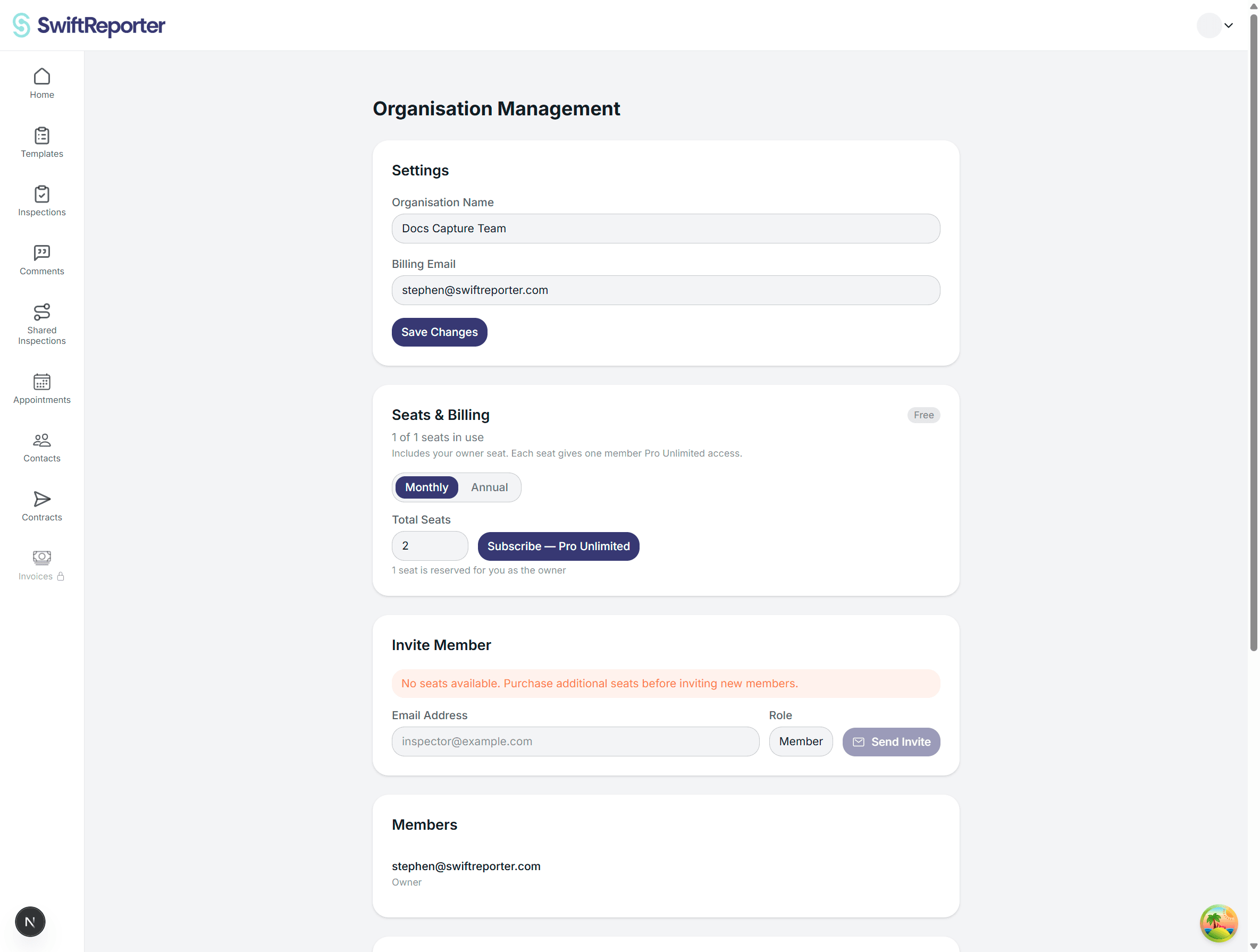
The Organisation Management page is at Organisation in the sidebar, visible to Owners and Admins only. It has several sections:
Settings
Owners can update the Organisation Name and Billing Email here. These are the name that appears across the product and the email that receives billing notifications.
Seats & Billing
Each member of your organisation needs a seat. Seats are purchased through a Stripe-powered subscription.
When a subscription is Active it shows a green badge. Past Due shows amber, and Cancelled shows red.
Invoicing Connection
The invoicing integration for sending invoices is connected and managed by the Organisation Owner only. Admins and Members can send invoices using the shared org connection, but they cannot change or disconnect it.
Invite Member
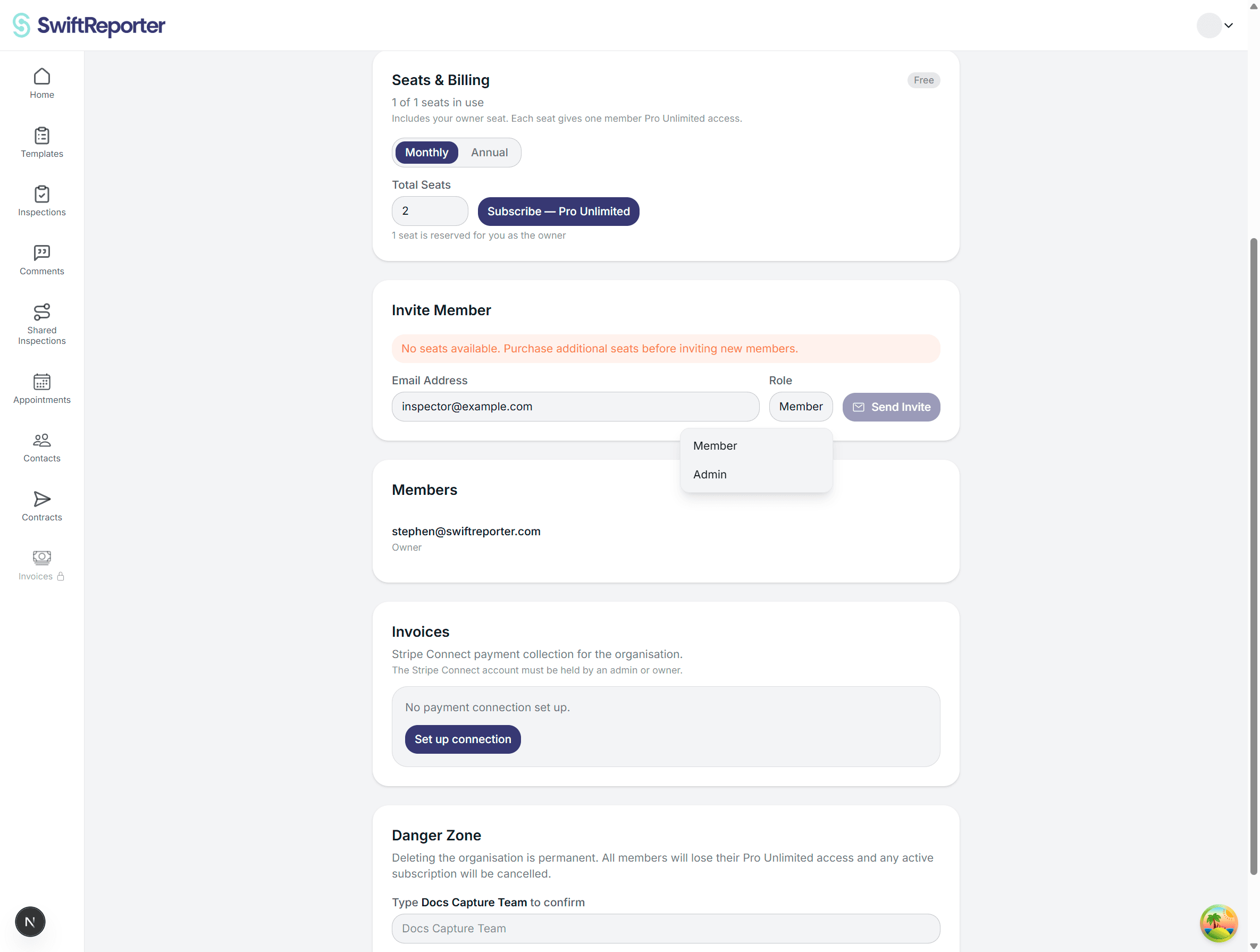
To add an inspector to your team:
The person will receive an email with a link to join. Invites are valid for 7 days. Each pending invite reserves a seat and you will see "Invite sent - 1 seat reserved" against their name until they accept.
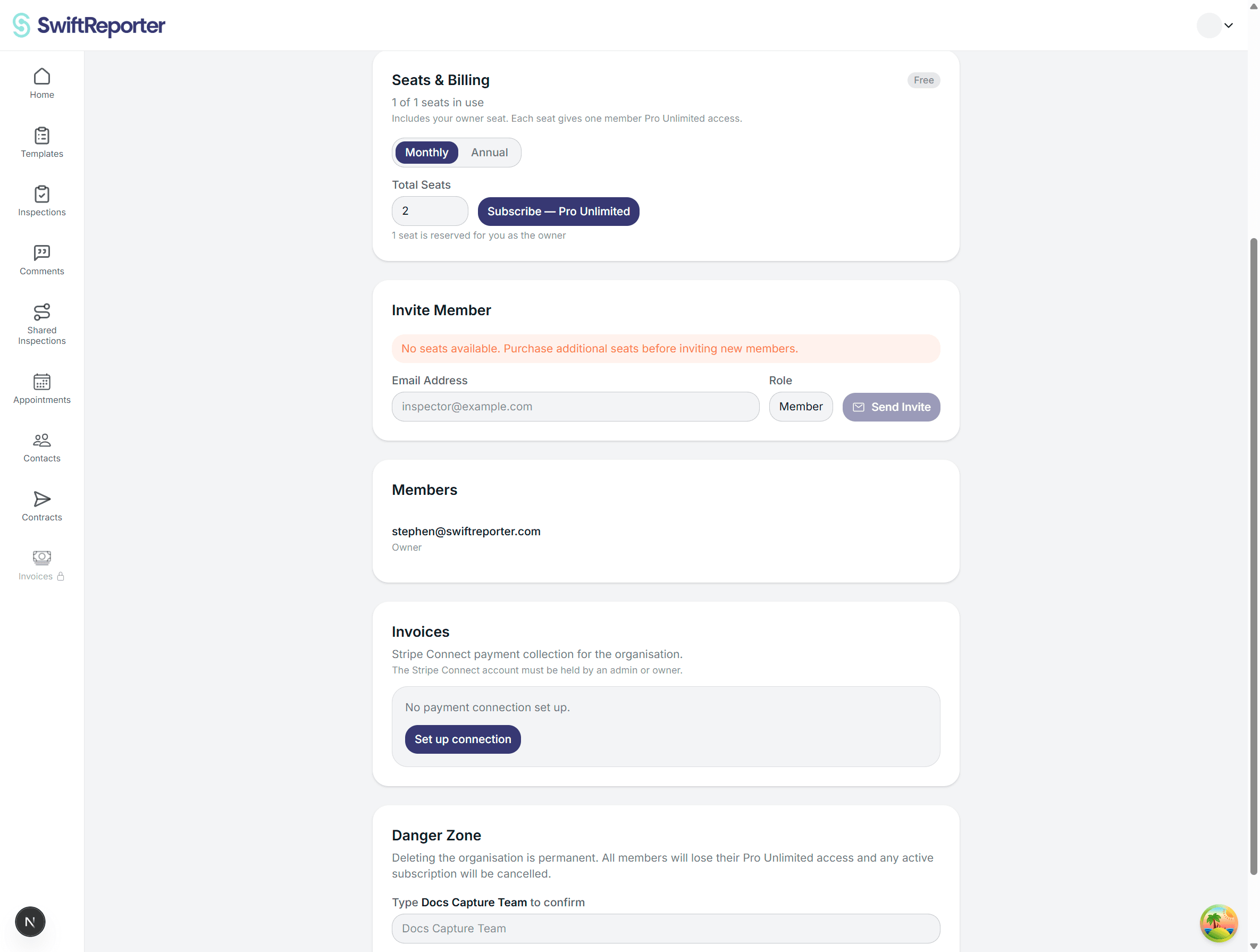
If you run out of seats you will see a warning and the Send Invite button will be disabled. Purchase more seats before inviting additional members.
You can resend an invite using the email icon next to their name or cancel it using the trash icon at any time before they accept.
Members List
All current and pending members are shown in this list with their name, email, role, and status. Owners can:
Empty seats, purchased but not yet filled, appear as "Empty Seat" at the bottom of the list.
Accepting an Invitation
When you receive an organisation invite email:
Inspector Assignment
Once you have a team, Admins and Owners can assign specific inspectors to an inspection or appointment.
On an Inspection
Open any inspection detail page. If you are in an organisation, you will see a Primary Inspector dropdown near the top of the page. Select the inspector whose profile, name, company, licence, and signature, should appear on the PDF report for that inspection.
On an Appointment
The same Primary Inspector selector appears on the appointment detail page for organisation users.
Shared Templates
When templates are created within an organisation they are visible to all members of that organisation. This means you can build a single master template and your whole team uses the same structure, comment library, and settings without each inspector needing to manage their own copy.
Account Page - Org Info
If you are a member of an organisation, your Account page shows organisation info, member management, and role settings.