
Custom Prompts
Custom Prompts
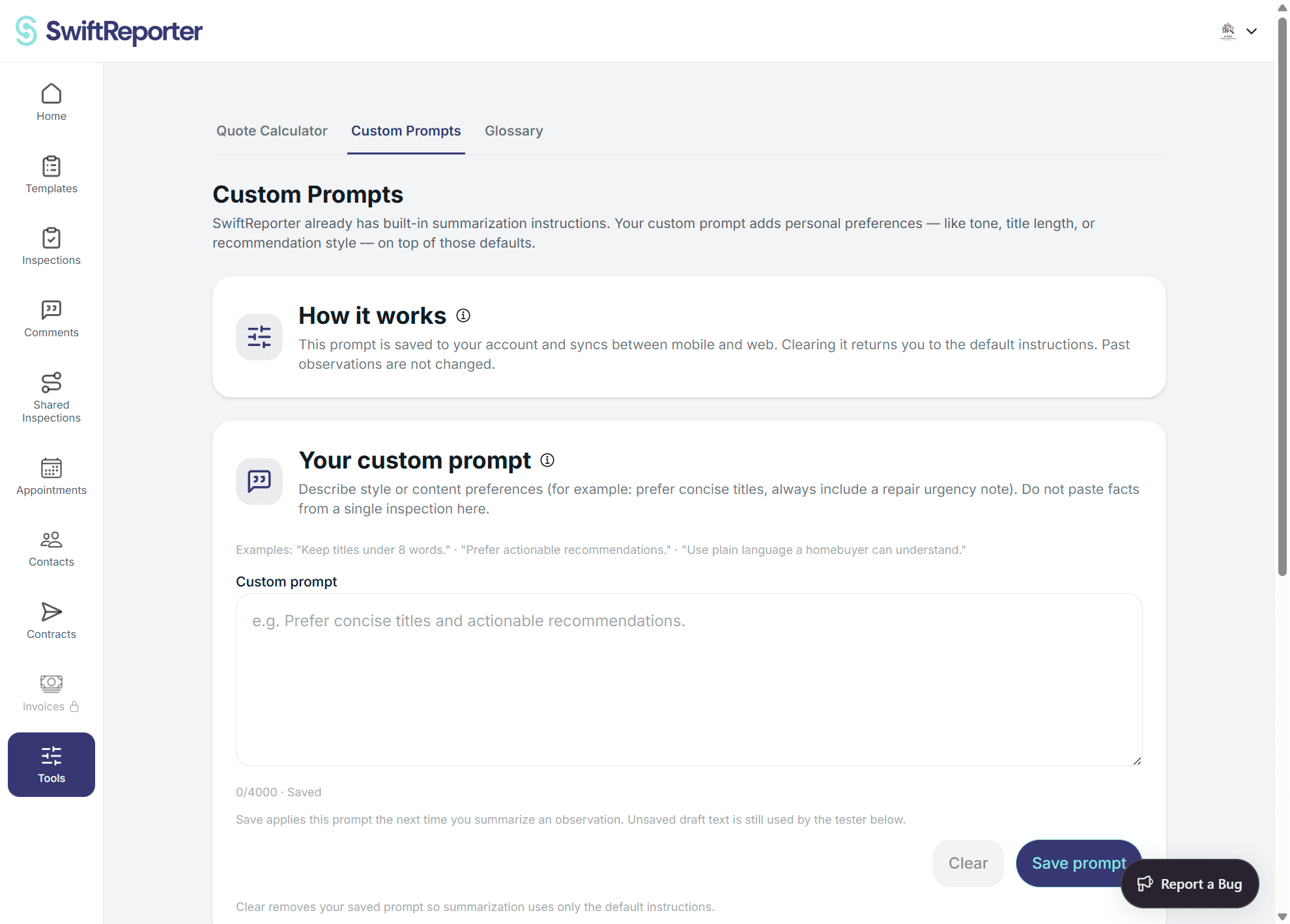
Custom Prompts lets you save personal tone and style preferences for observation summaries. A prompt controls preferences such as title length or recommendation style; it does not supply facts for an inspection.
Before you begin
Open Tools and select Custom Prompts. To use Test summarize, first select an active template because previews use that template.
Save and test a prompt
- Enter your preferences in Your custom prompt.
- Select Save prompt to sync it with your account on web and mobile. Text you are still editing stays in the field if your saved settings refresh in the background.
- To preview the effect, edit the sample notes and select Test summarize. The preview does not write to an observation.
- Select Clear to remove the saved preference and return to the default summary style.
What happens next
- Your prompt applies only to future summaries; past observations are not rewritten.
- An empty or cleared prompt returns summarization to its built-in defaults.
- Prompt preferences remain separate from the facts recorded in each inspection.
Troubleshooting
- Save fails: Check your connection and try Save prompt again.
- Test summarize needs a template: Choose an active template under Templates and retry.
- Custom Prompts is missing: The tool may not be available to your account on that platform.