
Appointments
Appointments
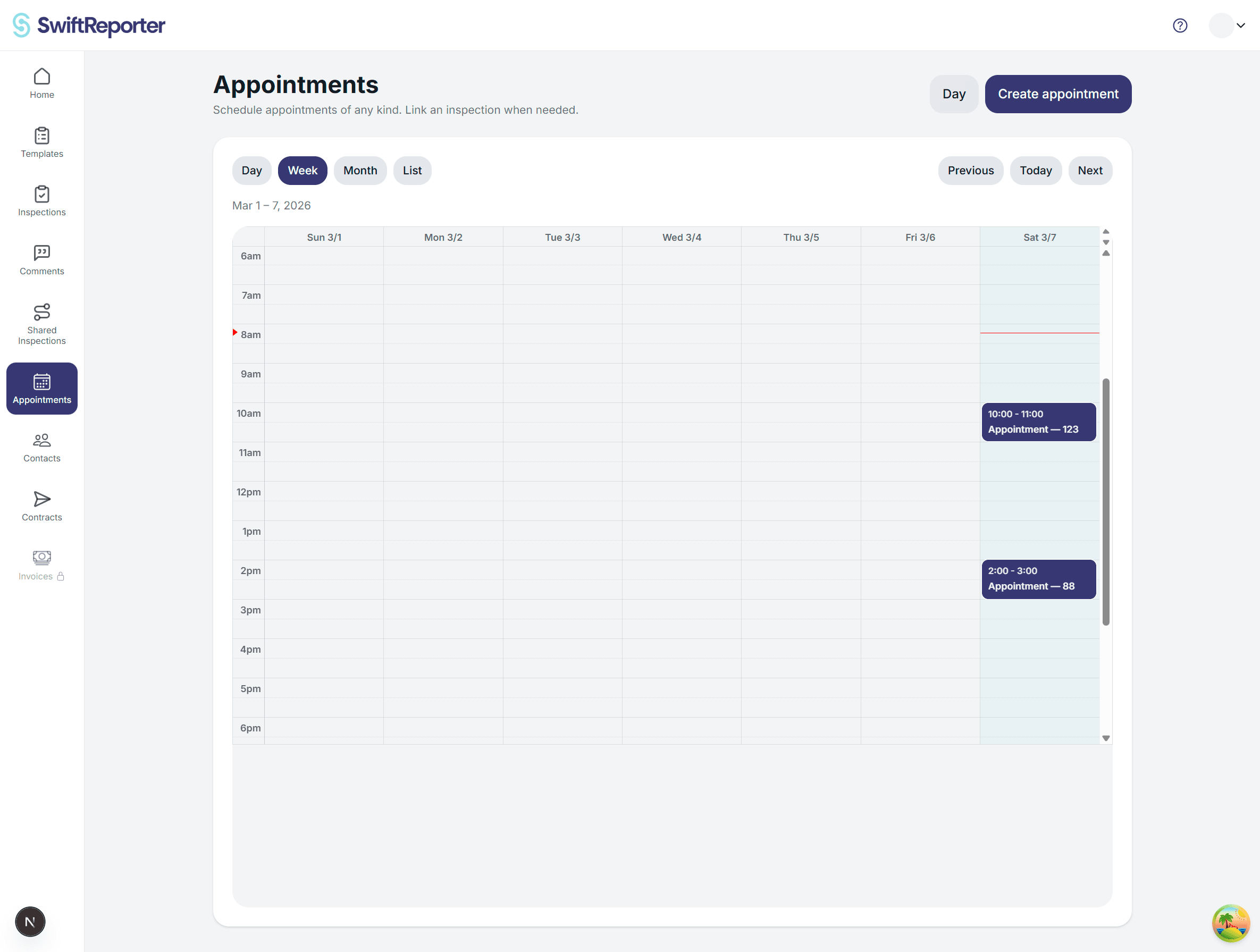
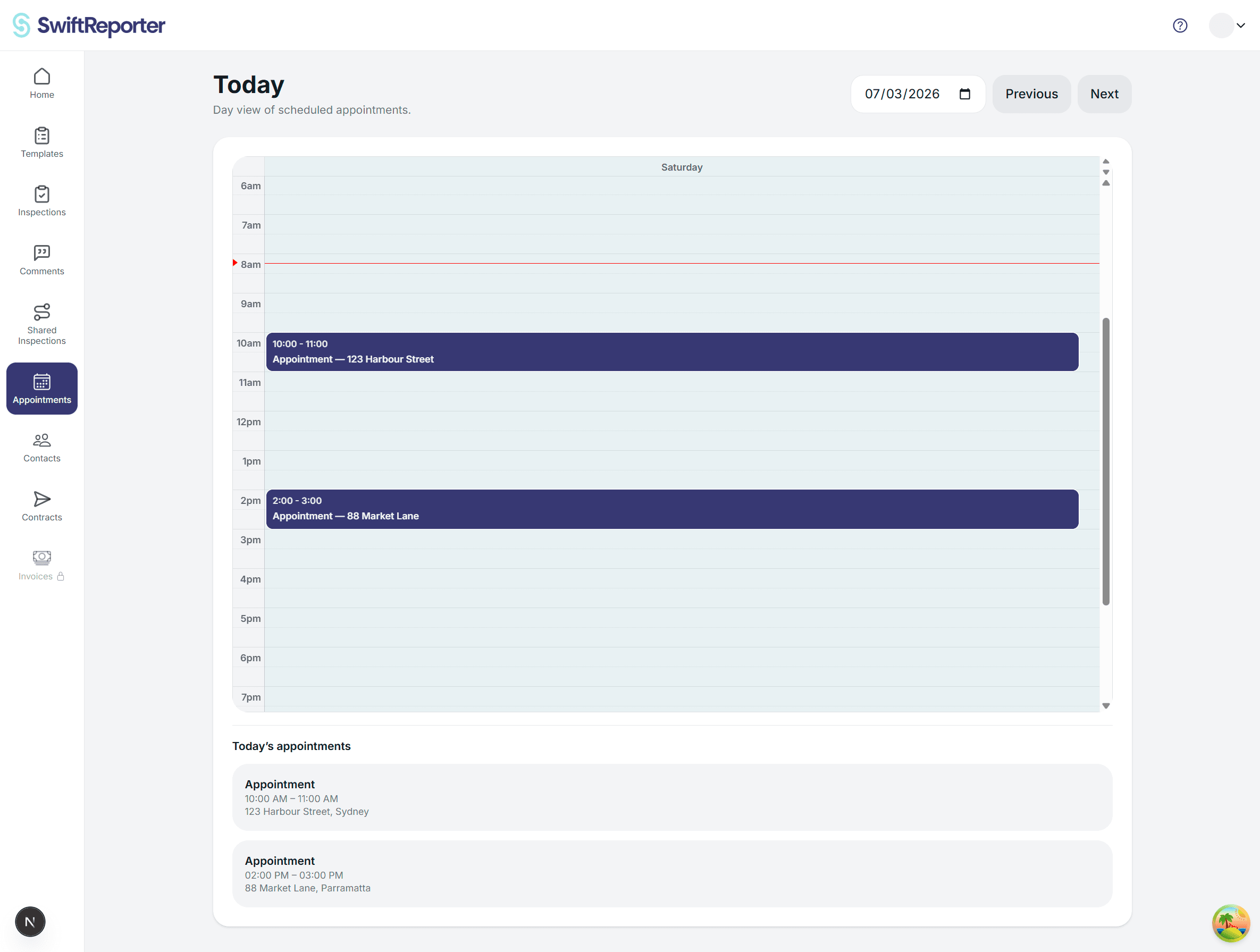
The Appointments page is where you schedule and manage your inspection appointments. It includes a calendar with multiple views, plus a list view for quickly scanning upcoming work.
Before you start
- Back of House access is required.
- SwiftReporter scheduling must be enabled.
Calendar views
Use the view buttons to switch between Day, Week, Month, and List.
- Day: best for planning a single day hour-by-hour.
- Week: shows your week at a glance.
- Month: high-level view of all upcoming appointments.
- List: upcoming appointments as cards, which is especially helpful on smaller screens.
Navigating the calendar
Use Previous, Next, and Today to move around the calendar. The navigation changes the time range based on your current view.
Creating an appointment
- Click Create appointment, or
- Click an empty time slot on the calendar in Day or Week view to start an appointment at that time.
Rescheduling and duration changes
You can drag an appointment to a new time or date to reschedule it, or resize an appointment to change its duration.
After changing an appointment, SwiftReporter will ask whether you want to send notifications to the contacts on the appointment.
Status badges
Appointments may show status badges so you can spot issues quickly:
- Contract: signed, pending, or not sent.
- Payment: paid, unpaid, or not created.
Public booking appointments
Customers can self-schedule through your public booking link. Those visits appear as normal appointments and may show a Public booking label in mobile appointment lists. Public booking reserves the appointment only—you still need to open its details to link or create the inspection and send agreements.
Open appointment details
Click any appointment to open its detail page. From there you can link inspections, manage contacts, send a contract, create an invoice, reschedule, or cancel.
Tips
- Use List view on smaller screens.
- Check badges before the day-of inspection to avoid surprises, such as unpaid invoices or unsigned agreements.
- Use the Today button to quickly return after browsing future dates.
- After a public booking, open the appointment details to attach the inspection and agreements.