
Create an Appointment
Create an Appointment
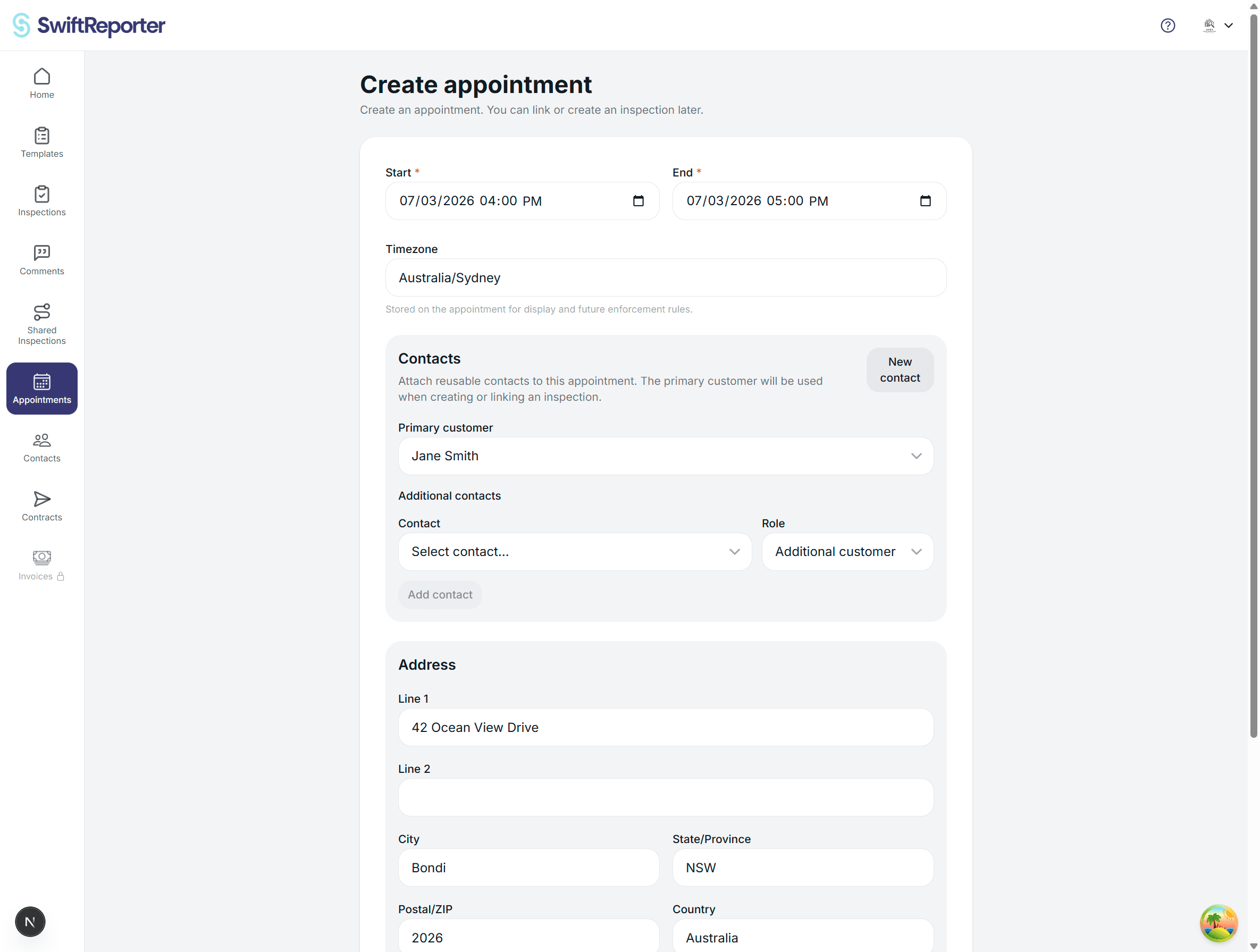
Use this page to schedule a new inspection appointment. You will choose the date and time, confirm the location, select the customer, and optionally add additional contacts such as agents or additional customers.
Step-by-step
- Set the date and time: choose a start and end time. If you clicked a time slot on the calendar, these will be pre-filled.
- Confirm the timezone: make sure it matches the appointment location.
- Select the primary customer: this is required. The primary customer receives key messages and action links by default.
- Add additional contacts: optionally add additional customers or business contacts and assign a role.
- Enter the address: this is the inspection location and is included in appointment details.
- Add entry instructions: optionally include gate codes, lockbox info, parking notes, or anything needed for access.
- Add internal notes: optionally add private notes visible only to you.
- Create: click Create to schedule the appointment.
Contact roles
- Primary customer: main customer recipient for reminders, invoices, and contracts.
- Additional customer: additional recipient who may also pay or sign depending on your settings.
- Agent, Seller, or Other: business contacts who typically receive status updates and may also receive payment or contract messages if you enable them.
Notifications when creating
After you create the appointment, SwiftReporter may ask if you want to send an initial confirmation notification to the contacts. You can send it immediately or skip it.
What to do next
After creation, open the appointment detail page to link or create an inspection, send a contract if required, and create and send an invoice if you collect payment before the inspection.
Tips
- Always double-check the timezone to avoid reminder timing issues.
- Use Entry Instructions for anything the customer should see and keep Internal Notes private.
- Add all relevant contacts up front so the right people receive updates automatically.