
Adding Videos to Observations
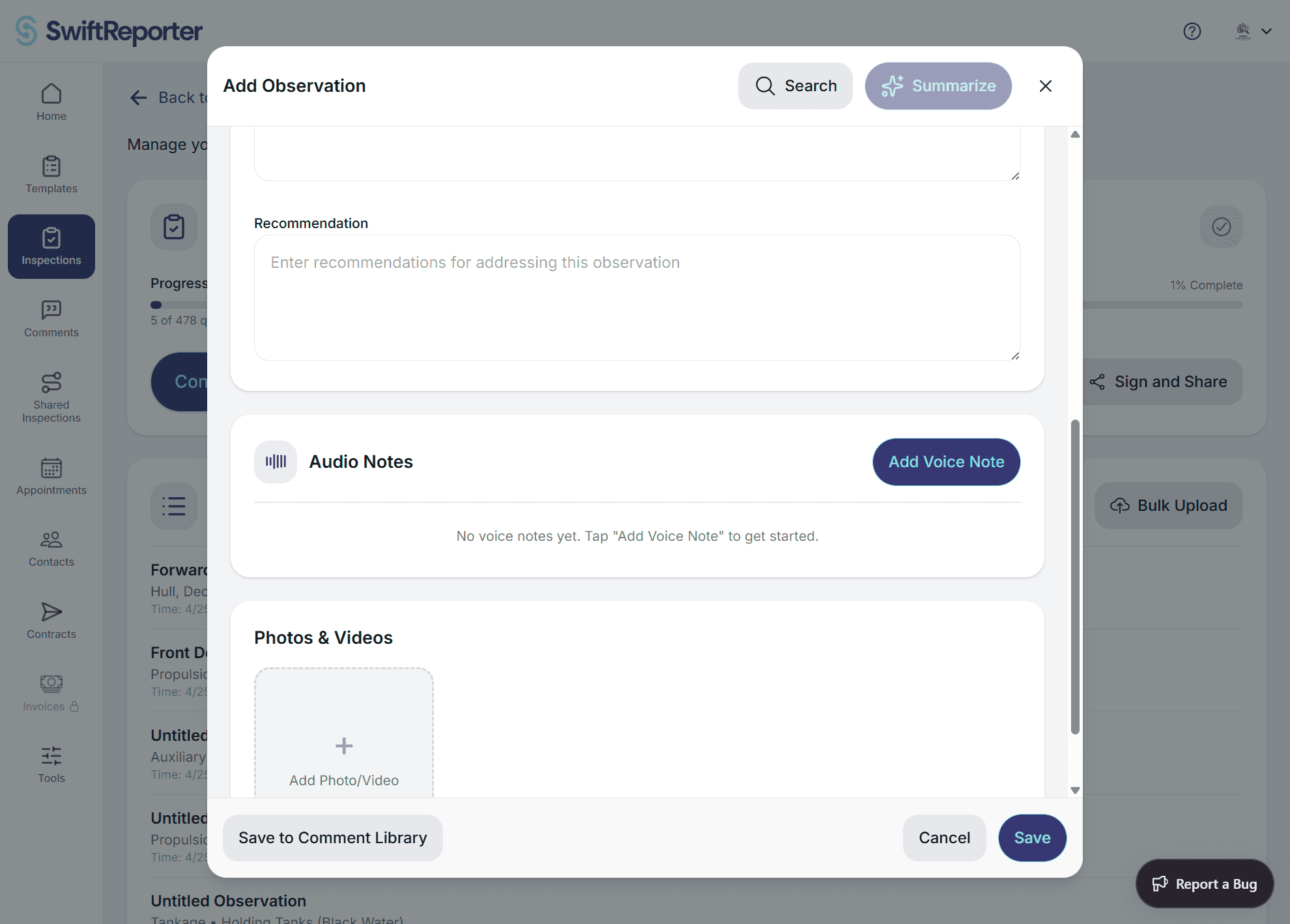
Videos let you capture movement, scope, sound, and narrated commentary that photos alone cannot convey. You can add videos to observations, subcategories, template questions, and required-note groups on both mobile and web — anywhere photos can be attached, except cover-page positions which remain photo-only.
Before you begin
- Each saved upload must be 60 seconds or shorter. If you pick or record a clip longer than 60 seconds, the edit screen opens so you can set trim markers and save a segment that fits the limit.
- Accepted formats: MP4, MOV, and WebM.
- Your subscription tier includes a video storage allocation. If your storage is full, new uploads are blocked until you free space or upgrade. See Managing Your Subscription for tier details.
- Videos are not available in the cover photo area. Cover positions accept photos only.
- The first time you record video, the app asks for camera and microphone permission if it does not already have them. Grant access so your recording can include picture and sound.
Adding a video (mobile)
- Open an observation or subcategory.
- Tap Add Photo/Video (the add control for photos and videos in that observation or subcategory).
- Choose one of the two options:
- Library — opens a combined picker showing both photos and videos from your device. Pick a video. The edit modal opens so you can set a title, pick a thumbnail frame, and set trim markers. If the source clip is longer than 60 seconds, trim it to the supported length before saving; then the clip appears in the grid and upload proceeds.
- Camera — opens the camera screen with a Photo / Video toggle. Switch to Video mode to record. See Recording a video below.
- Once the video is in the media grid, it uses the local file on the thumbnail. An upload progress percentage displays on the thumbnail. After upload, the server encodes the video into streaming-ready formats and the grid updates automatically when encoding completes.
Adding a video (web)
- Open an observation or subcategory and click the "Add Photo/Video" button.
- Choose one of the video options in the modal:
- Choose Video — opens a file picker accepting MP4, MOV, or WebM files.
- Record Video — uses your browser camera with the same 60-second limit and countdown ring as mobile.
- After selecting or recording, the edit modal opens. You can enter a title, set trim points, and pick a thumbnail frame. If the source clip is longer than 60 seconds, set trim points so the portion you save is within the limit. On web, trimming produces a shortened file before upload.
- Click "Save & Upload". The video appears in the grid and transitions through encoding states until it is ready for playback.
Recording a video (mobile)
The camera screen has a Photo / Video toggle. Switch to Video mode:
- Tap the record button to start recording.
- A countdown ring around the record button fills from full to empty over 60 seconds, showing time remaining.
- Tap the record button again to stop, or recording auto-stops at 60 seconds. You can stop at any time — the stop button is never blocked.
- If the recording is under 2 seconds, it is discarded with a "Too Short" alert. Recordings of 2 seconds or longer are saved normally.
- The front/back camera toggle is available before recording begins but not during.
- Audio is always captured — there is no mute option. Narrate what you see while recording.
- Flash/torch is available if your device supports it. Pinch-to-zoom works while recording.
After you stop recording, the video saves, is written to your device's photo/video library, and begins uploading. The clip appears in the media grid right away without leaving the observation. You are not required to open the trim and title editor next. Tap the video later when you want to set a title, trim markers, or thumbnail frame.
Recording a video (web)
The web camera component also has a Photo / Video toggle. Video mode works the same way: tap to start, tap to stop, 60-second maximum, 2-second minimum, and a countdown ring showing time remaining.
Full-screen camera and digital zoom (web)
When you launch the in-app camera on the web, it opens in full screen instead of being nested inside a category card. This gives you a larger live view for both photo capture and video recording.
- Digital zoom for photos: A zoom control is always available in the web camera while taking still photos. Above roughly 1.5×, a quality warning appears reminding you that digital zoom reduces sharpness — get closer to the subject when you can.
- Zoom hidden during video recording: As soon as you start recording video, the zoom controls disappear. The recorded video is captured at the camera's native framing (no digital crop is applied to the video file).
- Closing the camera: Use the on-screen close control to return to the inspection.
Editing a video
The edit modal is available on both platforms. On web it opens automatically after you choose or record a new video. On mobile you open it from the video in the grid when you are ready to edit — capture does not force this step before the clip appears in the grid.
The edit modal contains:
- Preview player — plays the video inline.
- Title field — optional text input for the video title.
- Thumbnail picker — a slider along the timeline to select the frame used as the thumbnail in grids, the report, and the PDF.
- Trim controls — start and end sliders on a timeline. On web, trimming produces a shortened file before upload. On mobile, trim markers are stored as metadata.
Watching a video
Tap or click a video thumbnail in the grid to open the player.
- Mobile: The player opens as a full-screen modal with a themed header bar containing a visible close button and the video title, plus playback controls below. Clips that are already uploaded and hosted in the cloud play with the same streaming experience as on web; recordings that still exist only on your device play from local storage.
- Web: The player opens as an overlay with a backdrop.
If the video is still processing, the player shows a status message ("Uploading..." or "Encoding — this usually takes a minute") instead of playback controls. The thumbnail stays visible. Opening an observation does not leave a video stuck on Uploading with a missing thumbnail — you see a playable video, or a truthful status, with the thumbnail still shown.
Videos you recorded on your device play from the local file even when you are offline. Cloud-only videos require an internet connection.
Watching videos in reports
Videos appear inline on the digital report view and within the customer portal. Playback requires a valid portal session and follows the same access rules as the rest of the report — if the report requires payment before release, videos are gated behind payment alongside the PDF.
In the PDF report, video thumbnails display with a play icon overlay. Each thumbnail is a clickable link that opens the SwiftReporter web report in your browser, taken to the right observation so you can play the video there. The PDF does not embed a long-lived login link; sign in if your access requires it, then play the video as usual.
Deleting a video
Long-press a video thumbnail (mobile) or hover over it (web) to reveal the delete option. Confirm the deletion when prompted. The video disappears from the grid right away after you confirm; removal from the streaming service, thumbnails, and your storage usage then completes in the background.
The media grid
Photos and videos display together in a single grid under the Photos and Video heading. By default they are sorted by creation time; on the web you can drag tiles to set an explicit order (see below).
- Video thumbnails show a centered play icon overlay and a duration badge.
- During upload, the play icon is replaced by a percentage progress indicator.
- During server-side encoding, a processing spinner appears on the thumbnail.
- If encoding fails, an error state replaces the thumbnail.
Reordering media in a grid (web)
On the web, drag any photo or video tile inside an observation, subcategory, question, or required-note grid to set the order it prints in the report. A ghost drop slot shows where the tile will land, and photos and videos share one explicit order in the same grid.
You can also drag a tile out of one grid and onto another grid (for example, from a subcategory grid into a specific observation) to move it. The move is optimistic — the tile appears in its new location immediately and you can drag it again right away.
Drag-to-reorder is disabled in read-only viewers (clients, finalized reports), on cover-page grids, and while a tile is still uploading or its video is still being processed. Wait for the upload or encoding badge to clear before reordering that tile.
Offline behavior (mobile)
- Capture: Video recording works fully offline. The video saves locally and to your device's photo/video library, and appears in the grid from the local file.
- Upload: Upload begins automatically when the device reconnects. Photos and audio sync before videos. Within videos, older items sync first.
- Playback: Videos with a local file play from the device. Cloud-only videos show the thumbnail with a connectivity message.
Troubleshooting
- "Too Short" alert: The recording was under 2 seconds and was discarded. Record again for at least 2 seconds.
- Cannot save — clip still too long: The portion you are saving still exceeds 60 seconds. In the edit screen, move the trim markers so the kept segment is 60 seconds or less, or start from a shorter source clip.
- Upload seems stuck: Check your internet connection. Large files use resumable uploads, so an interrupted upload picks up where it left off when connectivity returns. On mobile, if a video still shows "Uploading" after a long time, open the video — the app checks the streaming service and updates the status automatically if encoding already completed.
- "Encoding — this usually takes a minute": The server is processing the video into streaming-ready formats. Wait for encoding to complete. If the message persists for more than a few minutes, the grid will show an error state if encoding failed.
- "Storage Full" alert: Your video storage quota is at 100%. Delete videos from old inspections to free space, or upgrade your subscription tier. See Managing Your Subscription.
- Video does not play offline: Only videos you recorded or selected on the current device are available offline. Videos uploaded from another device or the web require an internet connection.