
Navigating the App
Navigating the App
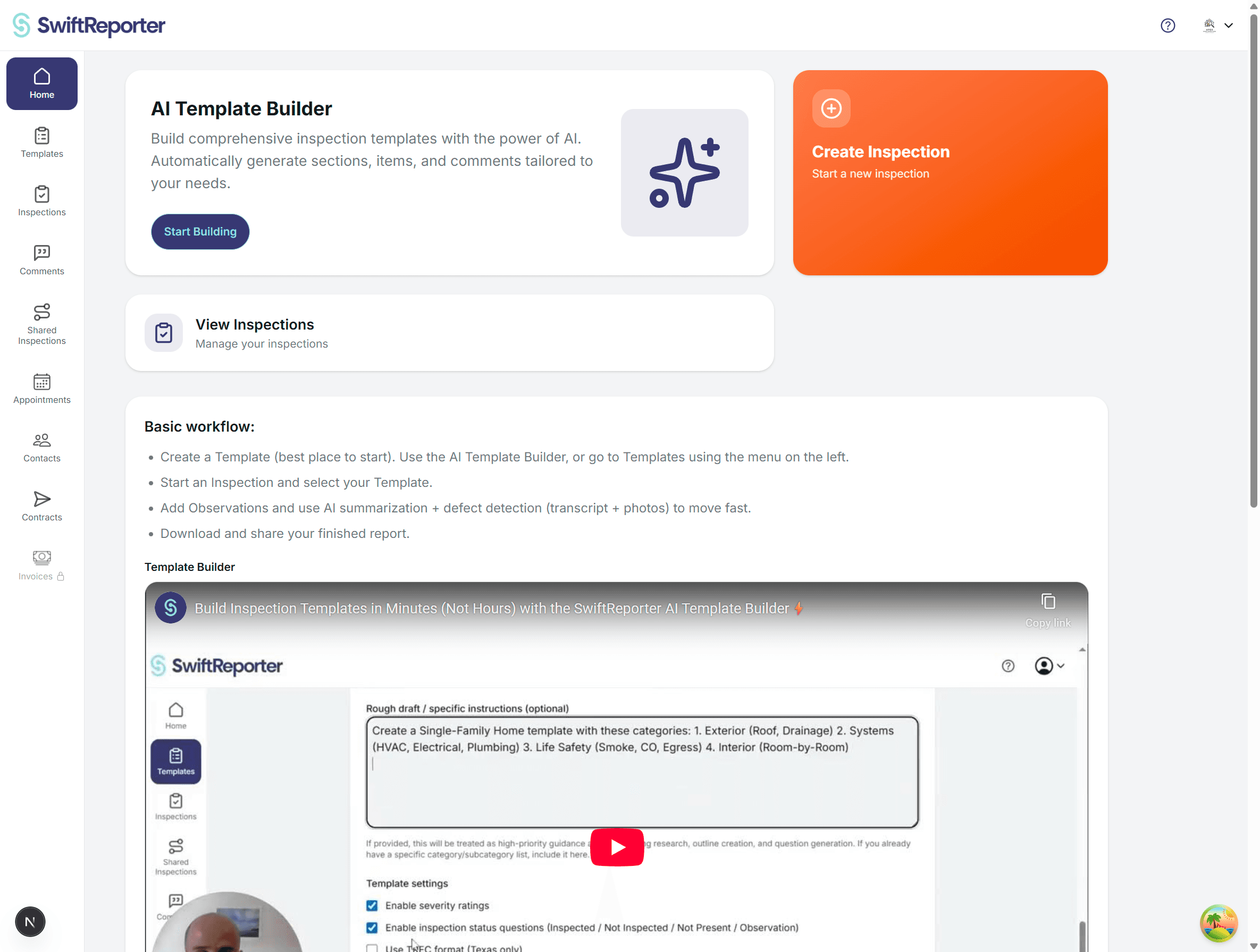
SwiftReporter uses a stack-based navigation system with header controls and direct navigation between screens.
Primary Navigation Structure
Header Navigation
- Custom Header: Located at the top right of most screens
- Access Controls: Contains navigation options and user account functions
- Back Navigation: Most screens include a back arrow or navigation control to return to previous screens
Screen Stack Navigation
The app follows a logical flow structure:
---
title: App Navigation Flow
---
graph TD
    A[Login/Signup] --> B[Home Screen]
    B --> C[Template Editor]
    B --> D[Inspection Details]
    B --> E[Profile]
    B --> F[Settings]
    B --> G[Archived Inspections]
    D --> H[Observation Screen]
    D --> I[Report View]
    I --> J[Report Preview/Download]
    H --> K[Camera Interface]
Main Navigation Paths
From Home Screen
-
Inspection Management:
- Tap any inspection in the list → Opens Inspection Details screen
- Tap "Create Inspection" → Creates new inspection and opens Inspection Details
-
Template Management:
- Tap "Edit Template" → Opens Template Editor screen
-
User Account:
- Access through Custom Header → Profile, Settings, Archived Inspections, Sign Out
-
Web sidebar:
- Archived appears after Inspections. The account menu also includes Archived Inspections.
From Inspection Details Screen
-
Observation Management:
- Tap "Add Observation" → Creates new observation and opens Observation screen
- Tap any existing observation → Opens Observation screen for that observation
-
Report Management:
- Tap "Complete Report" → Opens Report editing interface
- Tap "Details" → Opens detailed inspection information editor
- Tap "Download Report" → Directly generates and downloads PDF for sharing
-
Photo Management:
- Cover photo area → Opens photo selection/camera interface
From Observation Screen
-
Content Capture:
- Audio recording controls → Start/stop recording without leaving screen
- "Take Photos" button → Opens Camera interface
- Category/Subcategory dropdowns → Edit observation classification
-
AI Features:
- Wand button (when visible) → Trigger AI summarization of audio content
Navigation Controls
Header Elements
- Screen Titles: Each screen displays its function in the header (e.g., "Home", "Inspection", "Observation")
- Back Navigation: Automatic back buttons where appropriate
- Custom Header Button: Access to app-wide functions
Stack Navigation Behavior
- Forward Navigation: Tapping items pushes new screens onto the stack
- Back Navigation: System back gestures or header controls pop screens from stack
- Modal Screens: Some interfaces (like camera) open as modals over existing content
Deep Navigation Features
- Direct URL Navigation: The app supports direct navigation to specific inspections and observations via URL parameters
- State Preservation: Navigation state is maintained when returning to previous screens
Screen-Specific Navigation
Camera Interface
- Modal Presentation: Opens over existing screens
- Close Control: Dedicated close button to return to previous screen
- Capture Flow: After taking photos, automatically returns to previous context
Report Editor
- Edit/Complete Modes: Toggle between editing and viewing modes
- Section Navigation: Direct editing of specific report sections
- Template Editing: In-line editing of template structure within reports
Template Editor
- Category Management: Navigate between different template categories
- Modal Dialogs: Select templates, create new templates via modal interfaces
Tips for Efficient Navigation
💡 Quick Access: Use the Custom Header button for frequently accessed functions like Profile and Settings.
📱 Gesture Navigation: The app supports standard mobile navigation gestures including swipe-back where available.
🔄 Context Preservation: The app remembers your place in complex workflows, so you can navigate freely without losing progress.
⚡ Direct Actions: Many screens allow direct actions (like creating observations) without additional navigation steps.